
The club keeps forms, policies and team documents in the app, so you always have the latest version.
Staff Documents
On your dashboard, choose Documents. Staff Documents lists:
- staff documents for the whole club, such as handbooks and forms
- documents the office has shared with your team, or with your team's age group — these show a badge such as Tigers or Under 9
Documents are grouped by type. Type in Search documents... to find one by name or description.
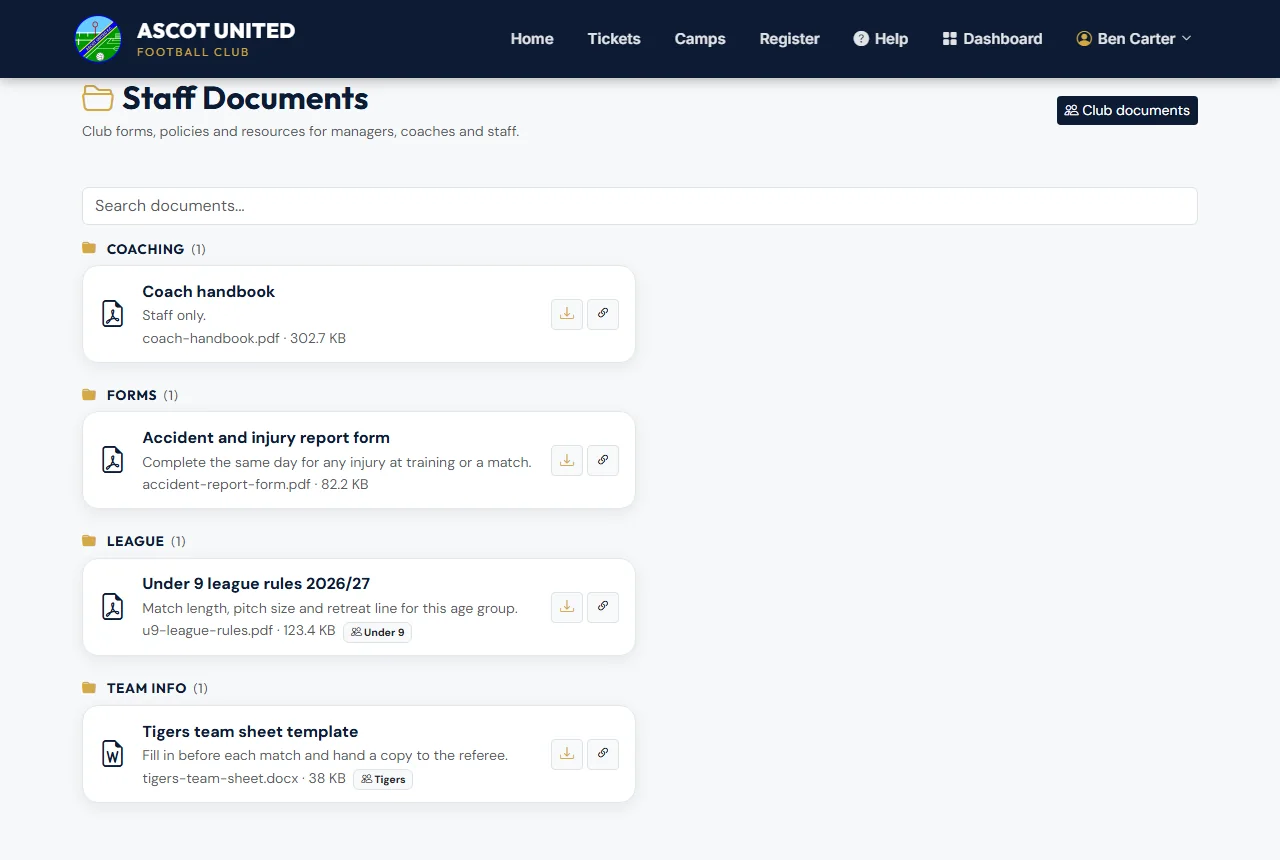
For each document you can:
- tap it, or the download button, to open or save it
- use Copy link to paste the link into a message
A copied link only works for people who are allowed to see that document. Anyone who isn't signed in is asked to sign in first. If a document has been removed, the link shows "Sorry, that file could not be found. It may have been removed."
If you see "No documents available for you yet.", nothing has been shared with staff on your teams so far.
Club documents
Club documents (top right) opens the library parents see: policies, codes of conduct and other club paperwork. See The documents area.
It shows club-wide documents, plus team documents for the teams your own children play for. A document the office has shared with the parents of the team you coach only appears here if your child is on that team too.
Adding a document
Only the club office can add, change or remove documents. To share a document with your team, send it to the office and say which team or age group it's for, and whether it's for parents or staff.
For a one-off file such as a team sheet or directions, you can attach it to an availability request or an email to your team instead.
Still stuck?
General enquiries: Jo Gavin