
Managers, coaches and team admins can email and text the families on their own teams, and the other staff on those teams. Open Communications from your dashboard and choose Compose.
Writing a message
- Choose Email or SMS at the top.
- For an email, choose who it's From. Your own club address (for example [email protected]) means replies come back to you. The club address is for messages that don't need a reply — the email tells parents not to reply.
- Tap To to open the directory and add recipients (see below). View list shows exactly who will get it.
- Add a Subject (emails only) and your message. Insert adds a link or a button, and pasted web links become clickable.
- For an email you can Attach files — PDF, images, Word, Excel or CSV, up to 10 MB in total.
- Choose Send.
Before it goes, the app may point out possible typos in a Check before sending box — apply a suggestion, ignore it or send anyway. Then it asks "Send this email to … now? Once it has gone it can't be recalled." When it's sent you'll see "Message sent to" and the number of people.
Choosing who gets it
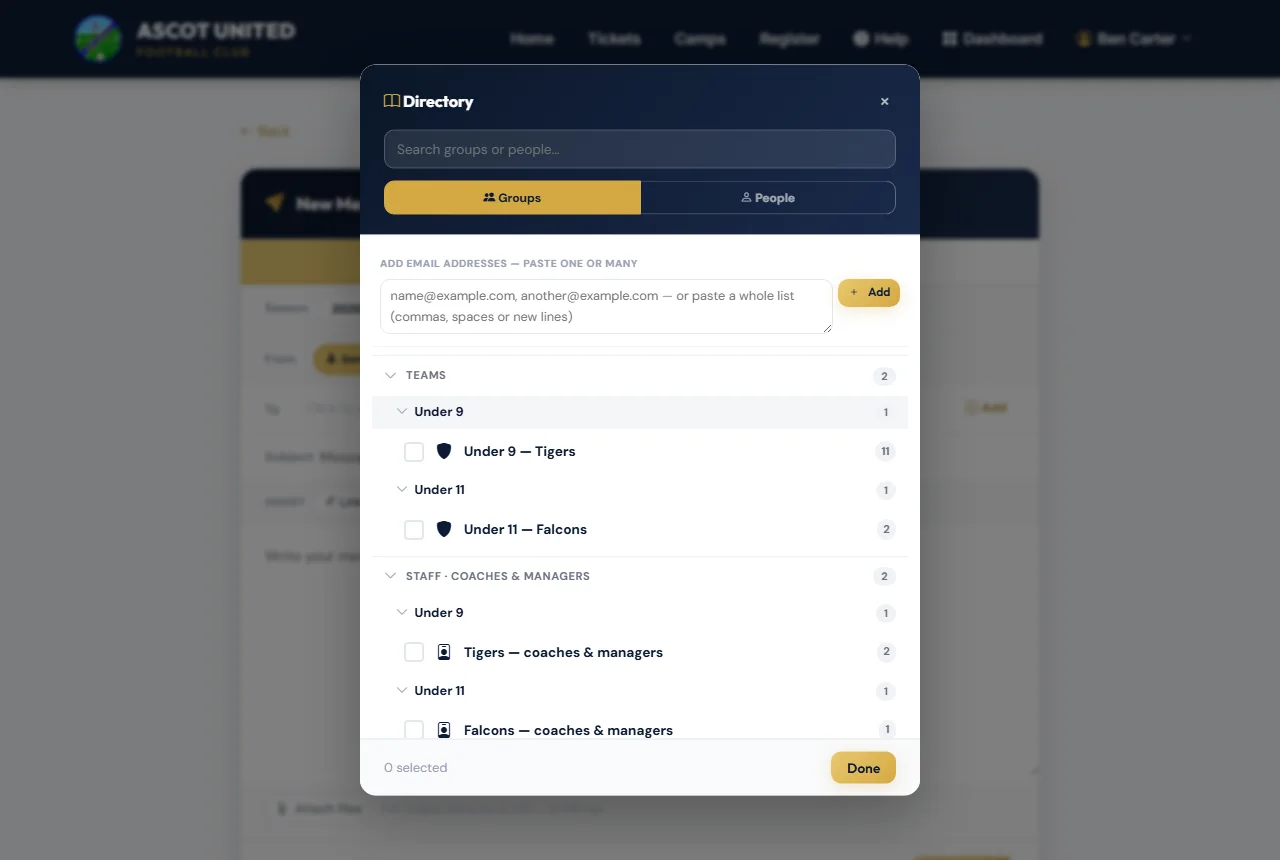
On the Groups tab you'll see only your own teams:
| Group | Who it reaches |
|---|---|
| Teams — for example Under 9 — Tigers | Every family on the team this season, including second parents and guardians, and players whose registration isn't finished yet. |
| Staff · Coaches & Managers | The managers and coaches of that team. |
| Staff · Team Admins | The team's admin assistants. |
The People tab lists the parents and guardians of your players, so you can message one family. You can also paste email addresses (or, for a text, phone numbers) into the box at the top.
Texts
For an SMS, choose the Type:
- One-Way (AscotUtd) — sent under the club's name. Parents can't reply.
- Two-Way — sent from a number parents can reply to. Their replies come to your inbox.
The counter shows how many characters and text segments you've used, and the cost. Emojis can't be sent by text and are removed.
Replies and your inbox
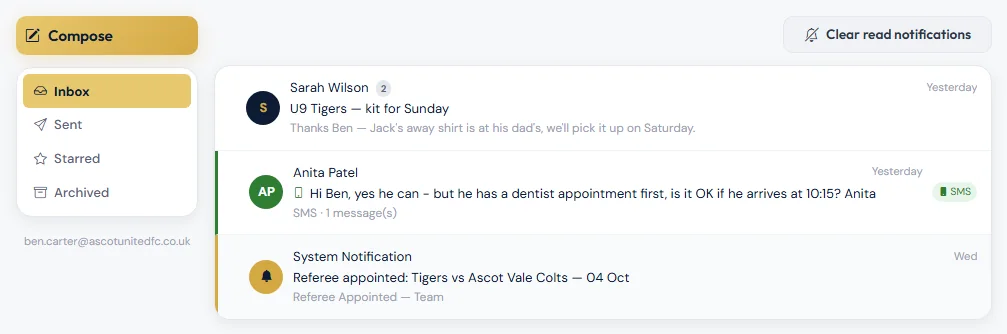
When a parent replies to an email sent from your club address, it lands in your Inbox in Communications, and you get an email titled New message from the parent. You won't get another alert for that conversation until you've opened it. Open the conversation to reply.
Replies to your two-way texts also come to your inbox. You only see the texts you sent and the replies to them.
Sent lists everything you've sent. Each player's page also shows your messages to their family under Communication History — see My Teams, rosters and medical information.
Messages go to parents and guardians, not to players. Parents can see what the club sends them in Messages and texts from the club.
Still stuck?
General enquiries: Jo Gavin