
Players & Squads shows the players on the teams you look after, with their parents' contact details. It's view only — you can't change a player's record.
Team Welfare Officers and First Aiders see the same pages for their team, so they have medical notes, allergies and parent contacts to hand. An age group's Registrar sees its players and its registrations list. All of these are view only, with no messaging.
Finding your squad
- On your dashboard, choose Players & Squads.
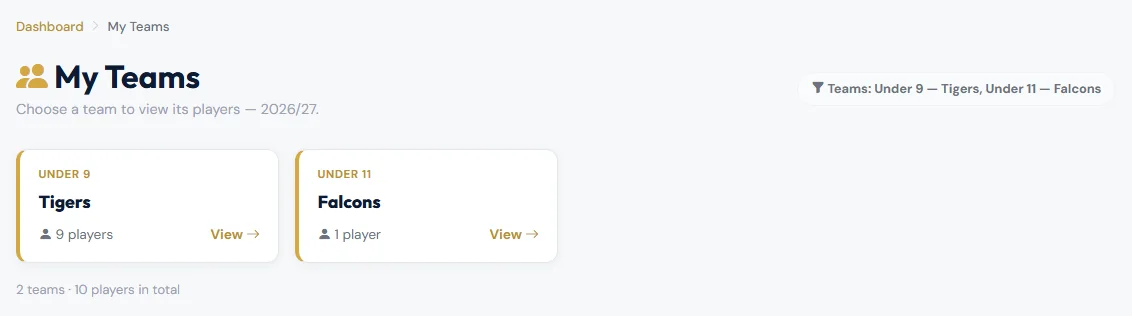
- My Teams lists your teams for the season, with how many players each has. Choose View on a team.
The team page lists every active player on the team, with their date of birth, registration status, parent or guardian, and the parent's email and phone number. Tap an email address or phone number to contact them.
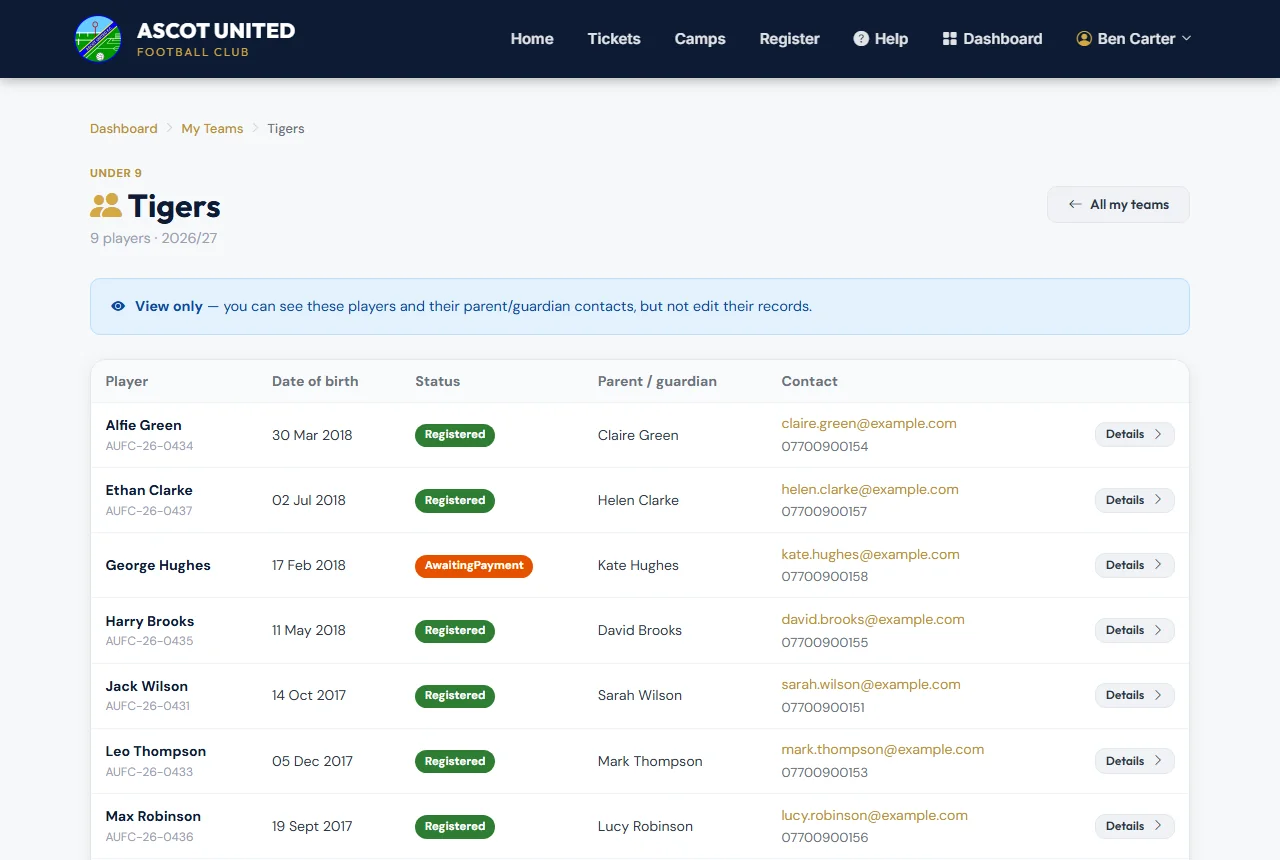
The list includes players whose registration isn't finished yet — for example AwaitingPayment. Those players won't get availability requests until they're fully registered.
A player's details
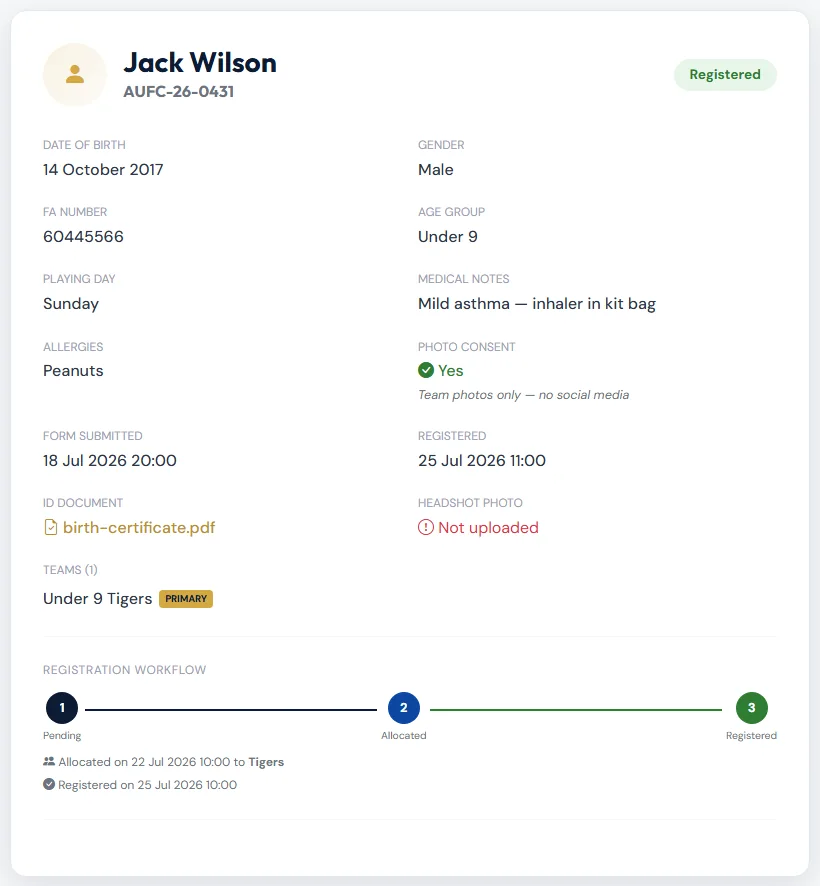
Choose Details (or the player's name) to open their page. It shows:
- date of birth, gender, FA number, age group and playing day
- Medical Notes and Allergies ("None" if the parent gave none)
- Photo Consent — Yes (with any restrictions underneath), No — opted out, or Not captured
- the teams they play for
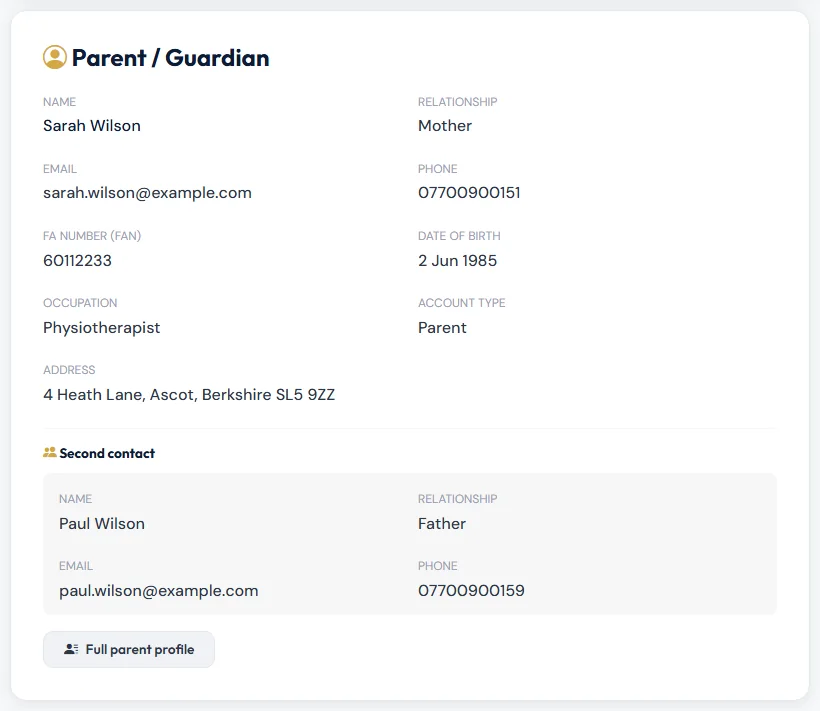
Further down, Parent / Guardian shows the main contact's name, relationship, email, phone and address, and any Second contact the family has added.
Communication History at the bottom lists the messages you have sent that family from the app. If you haven't sent any, it says "You haven't messaged this family from the club system yet."
What you can't do
You can't edit a player's details, move them between teams or remove them. Parents update their own details from their dashboard. For anything else, contact the club office.
Medical notes, allergies and contact details are confidential. Only use them to look after the players in your care, and don't copy them into personal notes or group chats.
Check Photo Consent before you share team photos. No — opted out means the family has said no to photos of their child.
Still stuck?
General enquiries: Jo Gavin