Sending a reminder
Reminders are never sent automatically — you choose when to chase.
- Open the request from the Availability tab.
- Choose Send Reminder. The number in brackets is how many players have no reply.
Each family that hasn't replied gets an email titled ⏰ Reminder, and a text if they have a mobile number, with the same reply link as before. Second parents and guardians get it too. If everyone has answered, the page says "Everyone has already responded!"
The Respond by date is only a guide for parents. Replies are still accepted after it, until the event day has passed or you close the request.
Recurring schedules
For regular sessions, set up a schedule once and the app opens each poll for you.
- On the Availability tab, pick your team next to For team: and choose Recurring Schedules.
- Choose New Schedule.
- Choose Training or Named event. For a named event, type the Event name (for example Goalkeeper session) — it's shown as the poll title.
- Set the First date — this also sets the day of the week it repeats on — and the Time.
- Choose Repeat: Weekly or Every 2 weeks. Leave Ends (optional) blank to run to the end of the season.
- Add the Location and Postcode.
- Set Open poll this many days ahead (for example 7 opens each poll a week before). Optionally set Respond-by (hours before) — for example 48 asks for replies 2 days before.
- Add any Message to parents you want on every poll, then choose Create Schedule.
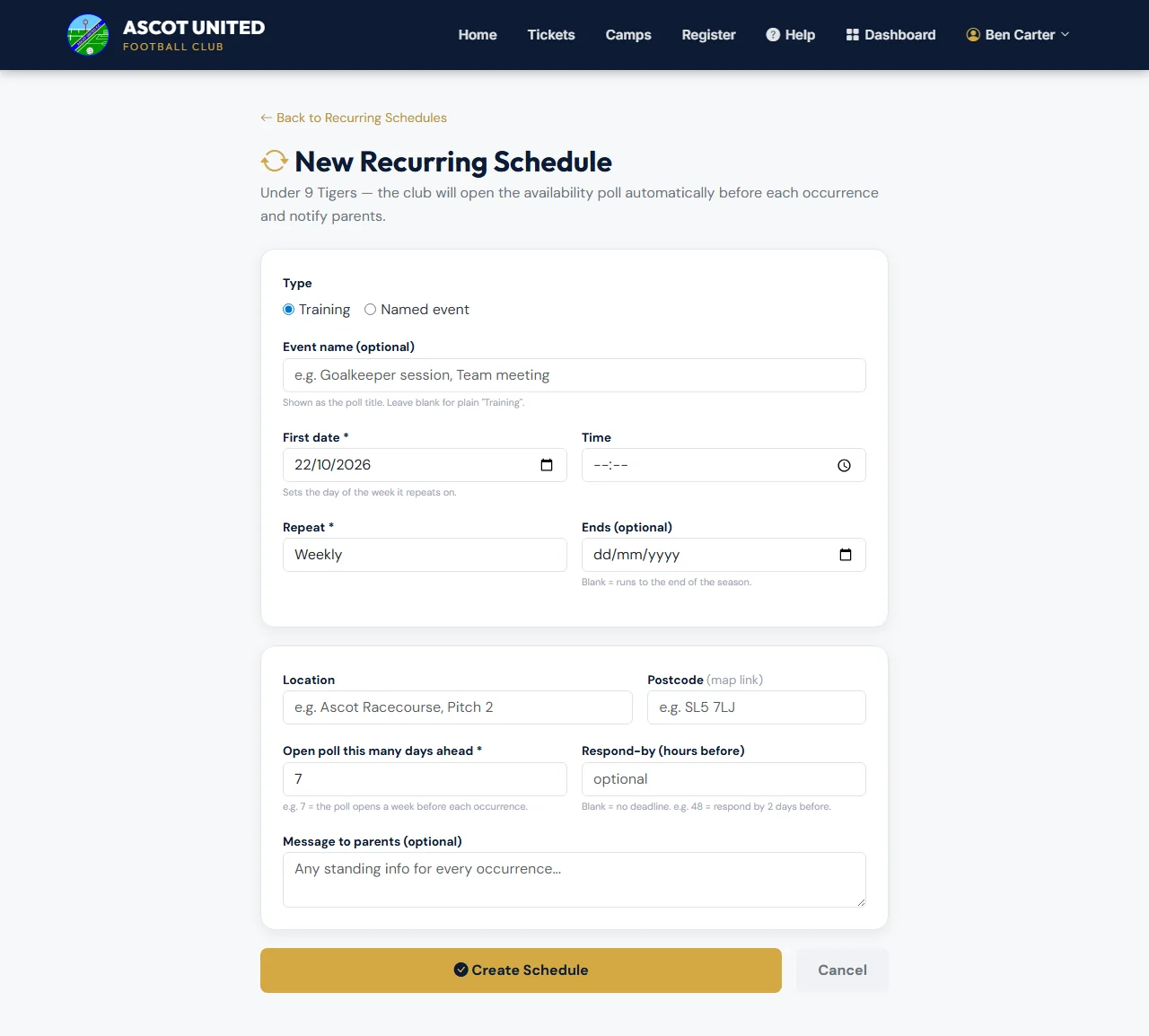
You'll see "Recurring schedule created. The next poll will open automatically as it comes due."
How the polls go out
The app checks every hour. When a session comes within your chosen number of days, it opens a poll and messages the families, just like a request you send yourself:
- it's sent in your name, and you get the alerts when someone drops out
- only fully registered players are asked
- players with a block-out that day are marked unavailable and not messaged
- each session only ever gets one poll
Once a poll is open, it appears on the Availability tab like any other request. You can remind, add players, close or cancel it there.
Pausing, changing or deleting a schedule
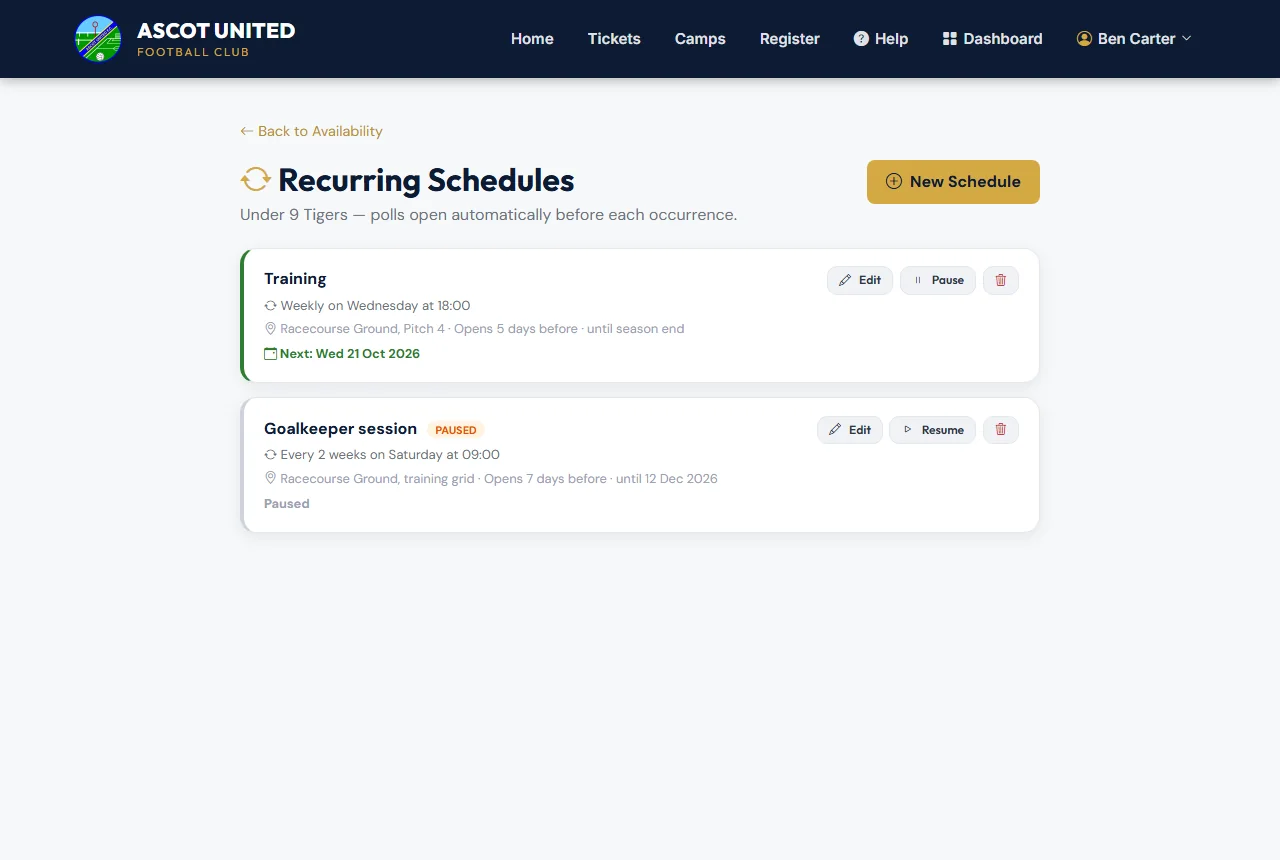
Each schedule shows how often it runs, how early polls open, and the Next session.
- Edit changes future polls only. Untick Active to pause it.
- Pause stops new polls opening until you choose Resume — handy over school holidays.
- The bin button deletes the schedule. Polls it has already opened are not affected.
Pausing or deleting a schedule doesn't cancel a poll that's already open. If a session is off, open that request and choose Cancel so the families are told.
Still stuck?
Fixtures and pitches: Jo Gavin