
The club office sets up your staff account and adds you to your team as a Manager, Coach or Admin Assistant (team admin) — or as the team's Welfare Officer or First Aider, who can see the team's players but nothing else. You don't register yourself.
If you're new to the app
You'll get an email called Welcome to Ascot United FC — Staff Access. It lists your access — for example "Manager — Under 9 Tigers" — or says "The club will add your teams shortly — you'll see them on your dashboard when you sign in."
- Tap Set My Password in the email. The link works for 7 days and only once.
- The page greets you by name. Enter a New Password (at least 8 characters) and type it again in Confirm Password.
- Tap Activate My Account. You'll see "Your password has been set. You can now sign in."
- Sign in with your email address and new password.
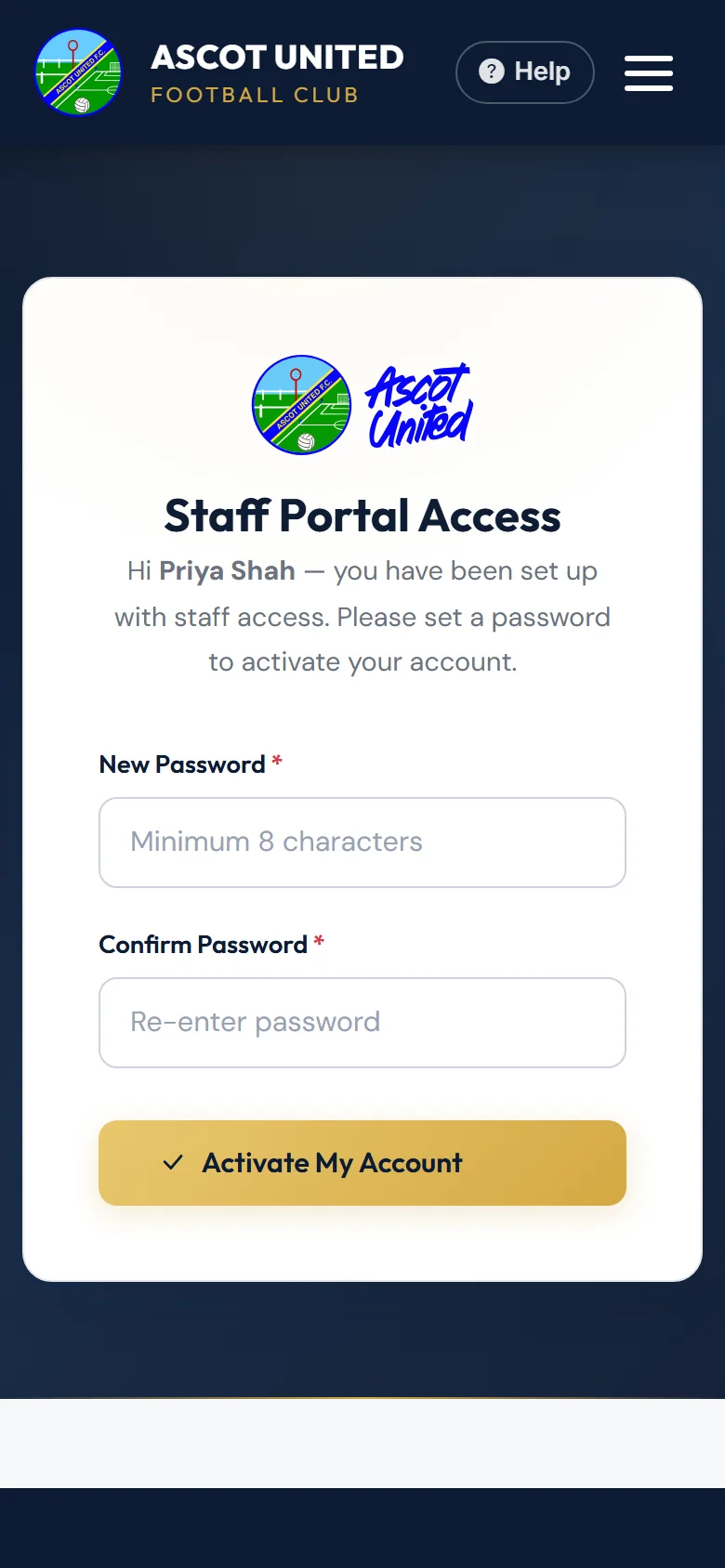
If the passwords don't match, or are too short, the page tells you and you can try again straight away.
If you see This Invitation Has Expired, the link is more than 7 days old or has already been used. Ask the club office to send a new invitation.
If you already have a parent account
You keep your usual email address and password, and your family's details stay as they are. You'll get an email called You now have staff access — Ascot United FC listing your access. Just sign in as normal.
Two-step login
If the club has made two-step login a requirement for you, you'll be asked to set it up the first time you sign in. The page says "Two-step login is switched on for your staff account." Choose an authenticator app, a text or an email, enter the code and tap Confirm & Sign In.
If it isn't required, you can still turn it on yourself from the menu with your name. Once it's on, you'll be asked for a code each time you sign in, unless you've trusted the device. See Two-step login and trusted devices.
Your dashboard
At the top you'll see your roles and teams, for example "Teams: Under 9 — Tigers". Needs Your Attention shows things to act on, such as Unread messages and Availability gaps (requests still waiting for replies).
Under Your Modules you only see what you can use:
| Tile | What it's for |
|---|---|
| Match Day | Fixtures, fixture requests and availability. |
| Players & Squads | Your teams' players and parent contacts (view only). Welfare officers and first aiders get this tile only (and Documents). |
| Communications | Emailing and texting your team's families, and your club inbox. |
| Soccer Camps | Only if you're helping at a holiday camp. |
| Documents | Staff forms, policies and team documents. |
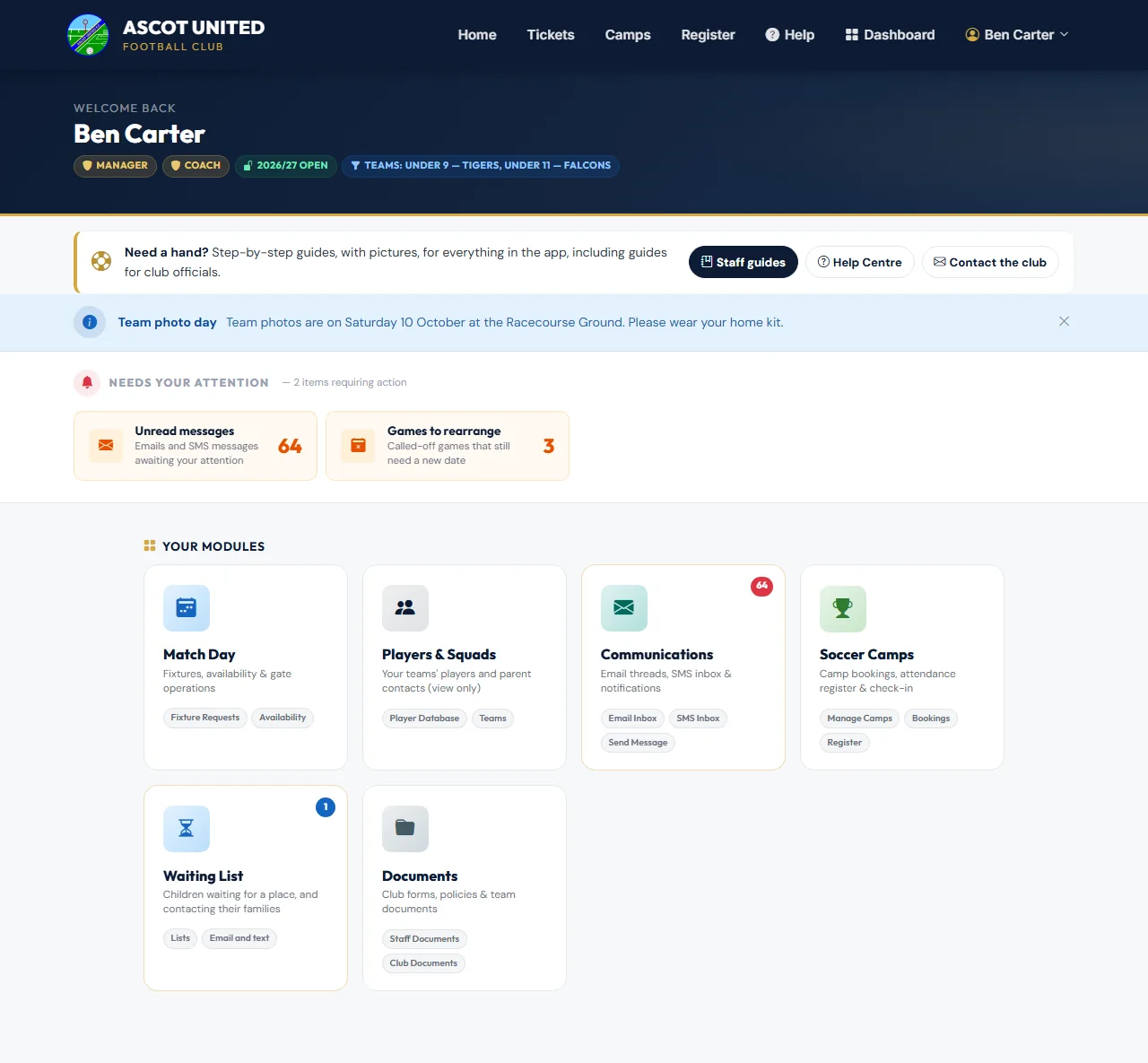
The menu with your name has Two-step login, Forget trusted devices, Help Centre and Sign Out.
If a team is missing from your dashboard, or you can't see a tile you expected, ask the club office to check your team access.
Still stuck?
General enquiries: Jo Gavin