
An availability request asks families whether their child can make a match or training session. Parents get an email, and a text if they have a mobile number. They reply from a link — no sign-in needed. See Replying to availability requests for what they see.
Sending a request
Open Match Day and choose the Availability tab. Pick your team next to For team: and choose New Availability Request. From a fixture's page you can also choose Check Availability, which fills in the match details for you.
- Choose Link to Fixture (optional) to fill in the date, kick-off, opposition and pitch from one of your fixtures, or type the details yourself.
- Choose Fixture, Training or Event (anything else — a team photo, tournament or presentation evening). An event needs an Event name; for training it's optional. Then check the Date, Time, Opposition and Location. For an away game, type the venue — it isn't filled in for you.
- Add a Postcode (map link) to give parents a one-tap Google Maps link.
- If you like, set Respond by, add Attachments (a team sheet or directions — PDF, Word, Excel or images, up to 15 MB each) and a Message to parents.
- Under Players, everyone is ticked. Untick anyone who shouldn't be asked.
- Choose Send to Selected Players.
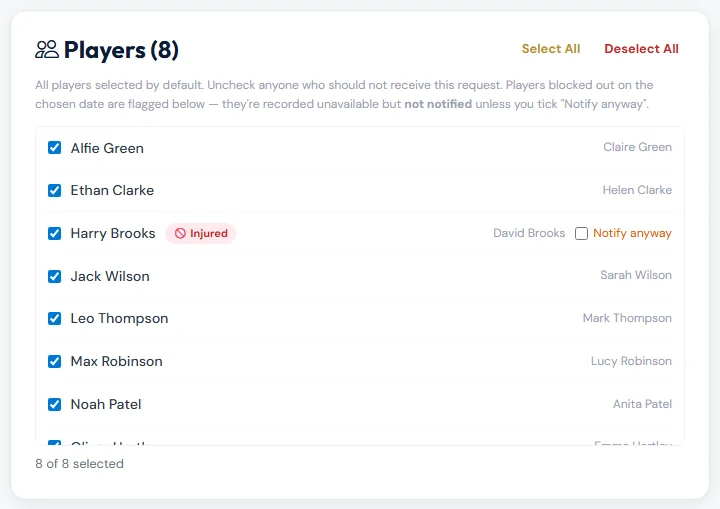
Only fully registered players are listed. A player with a block-out on that date is flagged (for example 🚫 Injured). They're recorded as unavailable and their family isn't messaged, unless you tick Notify anyway.
Following the replies
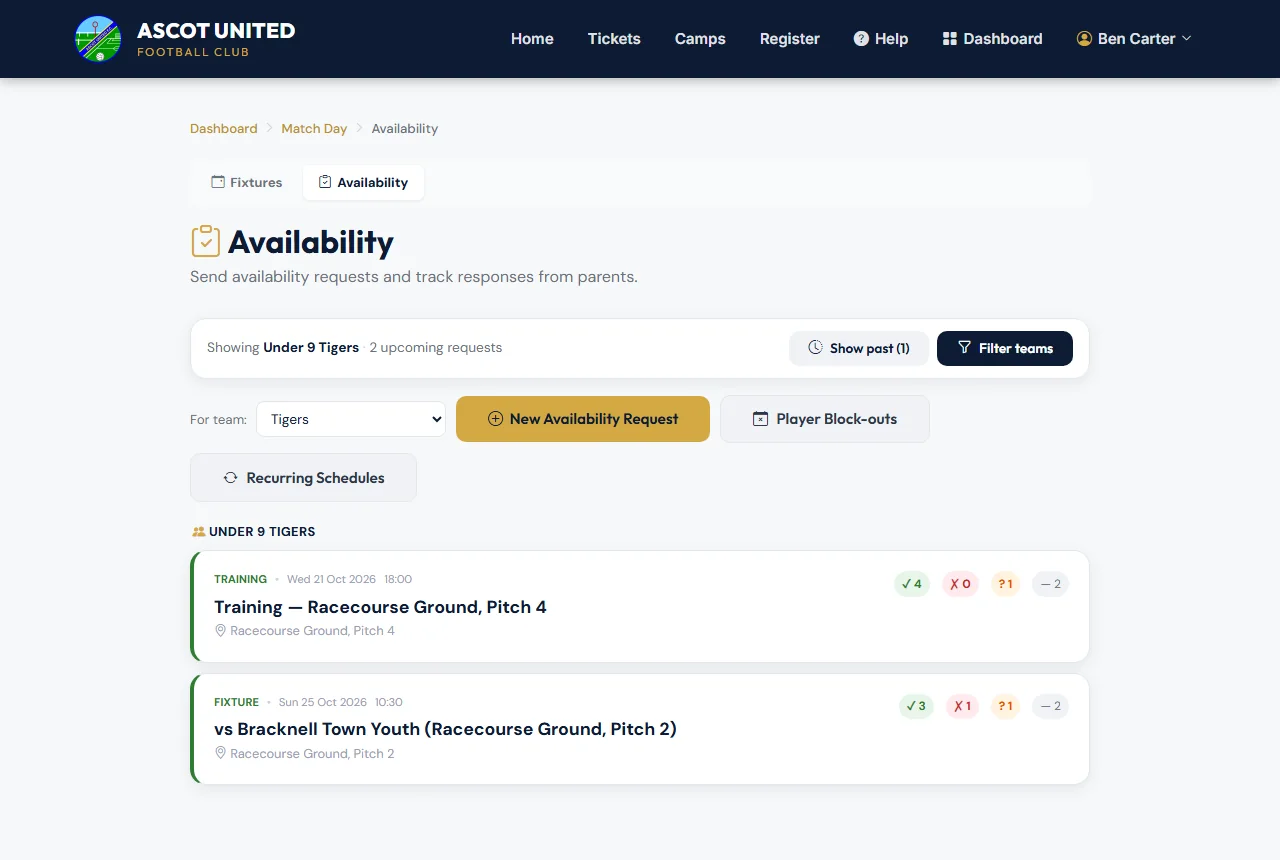
The Availability tab lists your upcoming requests with counts of ✓ available, ✗ unavailable, ? maybe and — no reply. Show past lists older ones, and Filter teams appears if you look after more than one team. Tap a request to open it.
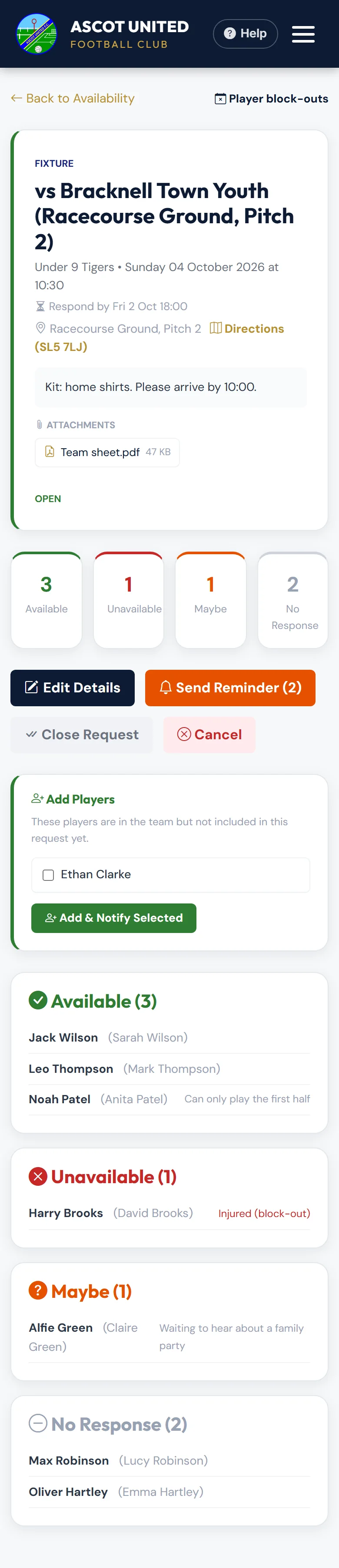
The request page shows the Respond by date, directions, attachments, and who has answered, with any notes from parents.
- Send Reminder messages every family that hasn't replied. See Recurring polls and reminders.
- Add Players lists registered team players who weren't included. Tick them and choose Add & Notify Selected. Anyone with a block-out that day is added as unavailable and not messaged.
- Close Request stops replies without telling anyone.
- Cancel is for when the match or session is off. The families who were asked are emailed that it's cancelled.
Changing a request after it's sent
While a request is open, choose Edit Details on its page to change the name, date, time, opposition, location, postcode, respond-by date or message.
- If you change the date, time or place, Let families know about the change ticks itself. Families get a short Updated: email (and a text if they have a mobile) with their usual reply link, and their earlier answers are kept. Untick it if you'd rather tell them yourself.
- The request page then shows what changed and marks answers given before the change before change, so you can check they still stand.
- A request made from a fixture stays linked to it — editing the request doesn't change the fixture.
Closed and cancelled requests can't be edited. Requests close by themselves after the event day.
When a player drops out
If a parent changes an answer from Available to Unavailable or Maybe (or from Maybe to Unavailable), the team's managers, coaches and team admins, and whoever sent the request, get an email titled ⚠️ Availability Changed, and a text if they have a mobile number.
Injuries and holidays (block-outs)
Choose Player Block-outs to mark a player unavailable for a period.
- Under Add a block-out, choose the Player, the From and To dates, a Reason (Injured, Holiday, School or Other) and an optional note.
- Choose Add block-out.
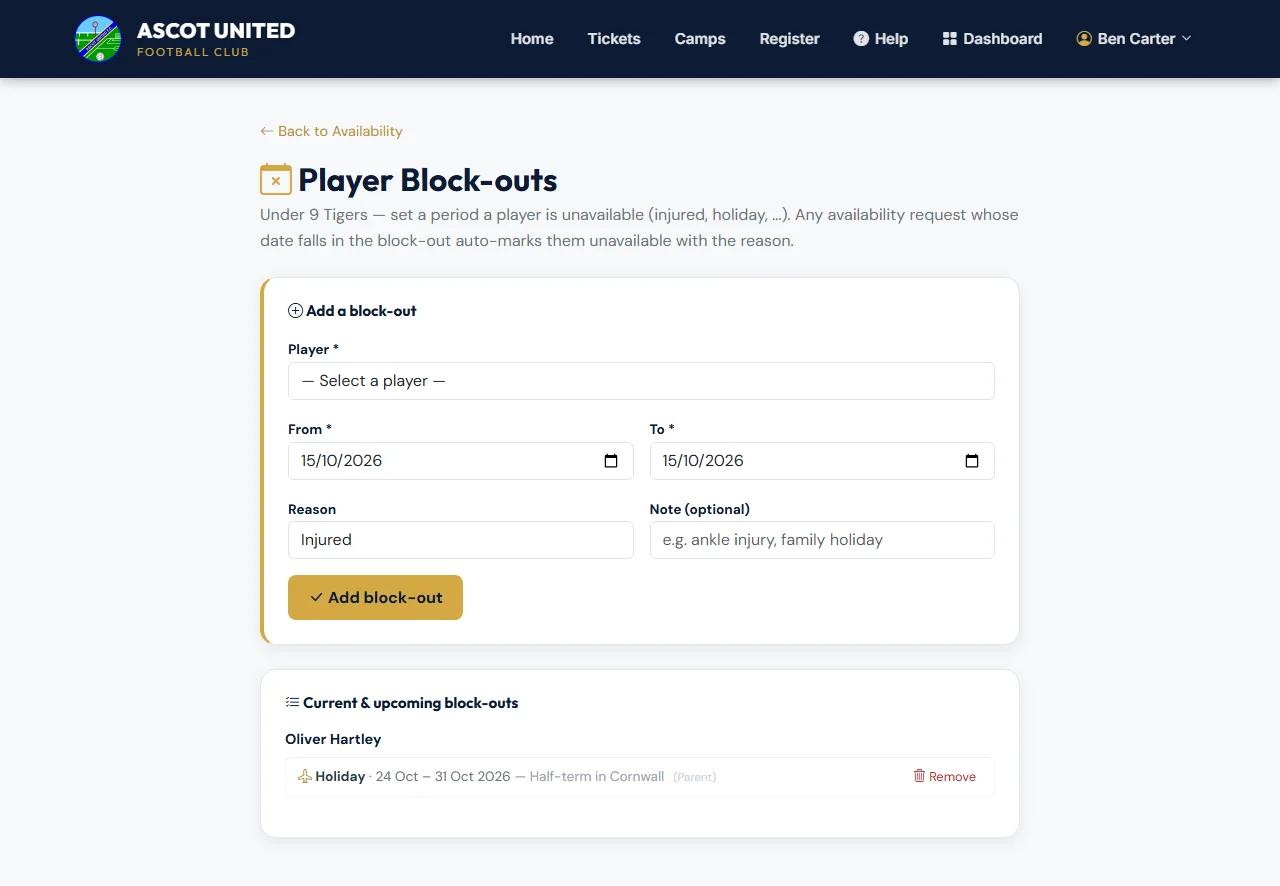
Any open request in those dates changes to Unavailable with the reason. If that replaces an answer the family had already given, a warning tells you — the family isn't told, so let them know. Parents can add block-outs too; they show (Parent).
If you Remove a block-out, answers it filled in go back to no reply. Use Send Reminder on the request if you'd like the family to answer again.
Still stuck?
Fixtures and pitches: Jo Gavin