
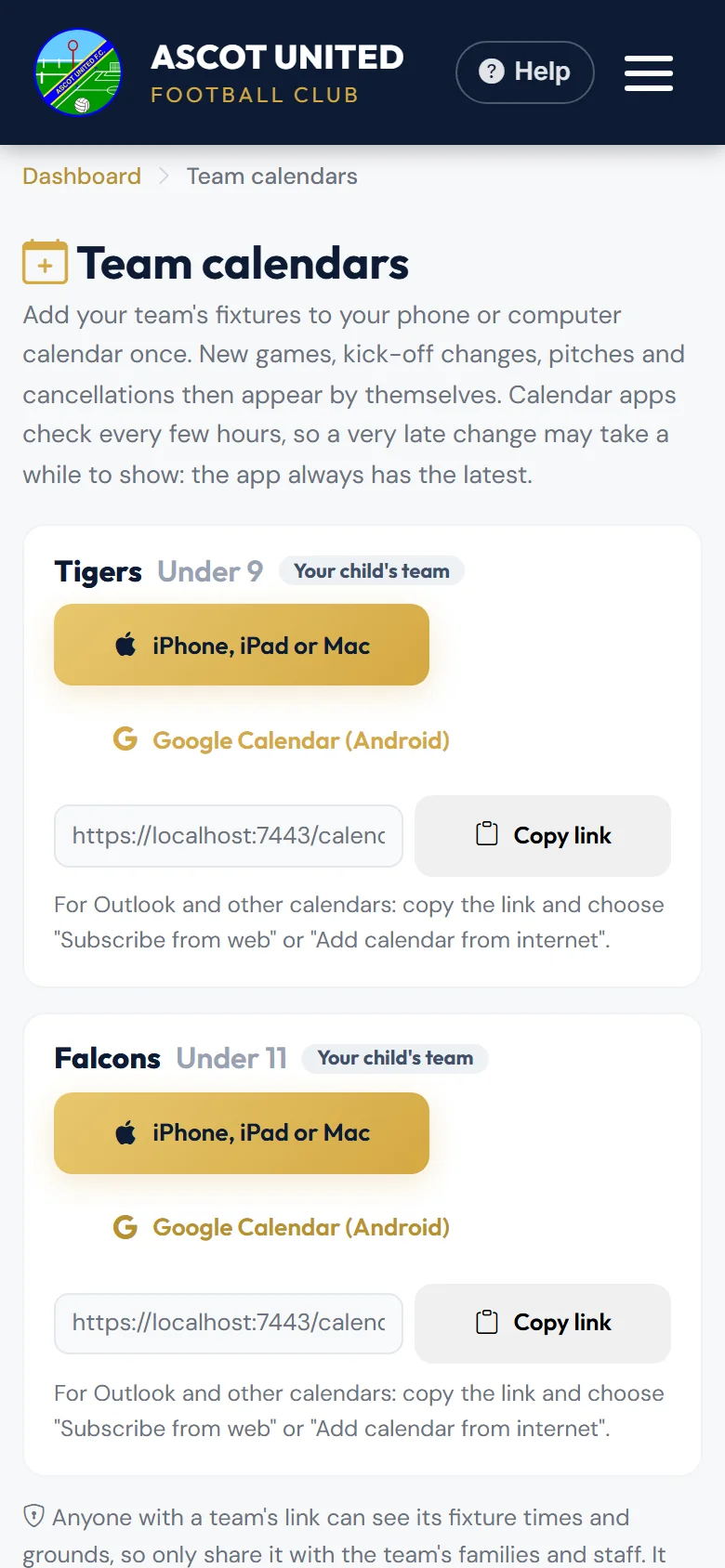
Each team has its own calendar link. Add it to your phone or computer calendar once and the team's fixtures appear there. Changes, such as a new game, a different kick-off or a cancellation, show up by themselves.
Adding it
- On your dashboard, choose Team Fixtures in My Calendar (under Quick Links). Team staff can also use Add to my calendar on the Fixture List.
- Find your child's team. Each of your teams this season is listed.
- Choose how to add it: - iPhone, iPad or Mac: tap the button, then Subscribe. - Google Calendar (Android): tap the button and confirm Add. On an Android phone, the calendar then appears in the Google Calendar app. - Outlook and other calendars: choose Copy link, then in your calendar choose Subscribe from web or Add calendar from internet and paste the link.
What you see
- Each game shows the teams, home or away, and for home games the pitch and ground, with directions and other information for visitors.
- A home game still waiting for a pitch shows as an all-day entry until the kick-off is set.
- A cancelled game stays in your calendar, marked CANCELLED, with the reason if the club gave one (for example a waterlogged pitch).
Calendar apps check for changes every few hours, so a change made on the morning of a game may not show straight away. If a game is called off at short notice, the club also emails and texts the team's managers.
The calendar only has the times and grounds. Availability requests still come by email and text. Reply to those as usual: see Replying to availability requests.
Keeping the link private
Anyone with a team's link can see when and where the team plays, so only share it with the team's families and staff. It doesn't show anyone's name or contact details.
If the link has been shared too widely, the team's manager can choose Make a new link. The old link then stops working, so everyone needs to add the new one.
Still stuck?
Fixtures and pitches: Jo Gavin