The referee portal is where you accept or decline matches, see your upcoming games and tell the club when you're away. It's at app.ascotunitedfc.co.uk/RefereePortal, and every appointment email has a View your referee portal link.
The portal has its own sign-in. It isn't the same as a parent or staff account in the club app, even if you use the same email address.
Three ways in
- The link in an appointment email or text. It signs you in and opens that match. See Confirming or declining a match.
- Your email and password, once you've set a password.
- A one-click login link emailed to you. Use this the first time, or if you've forgotten your password.
Getting a login link
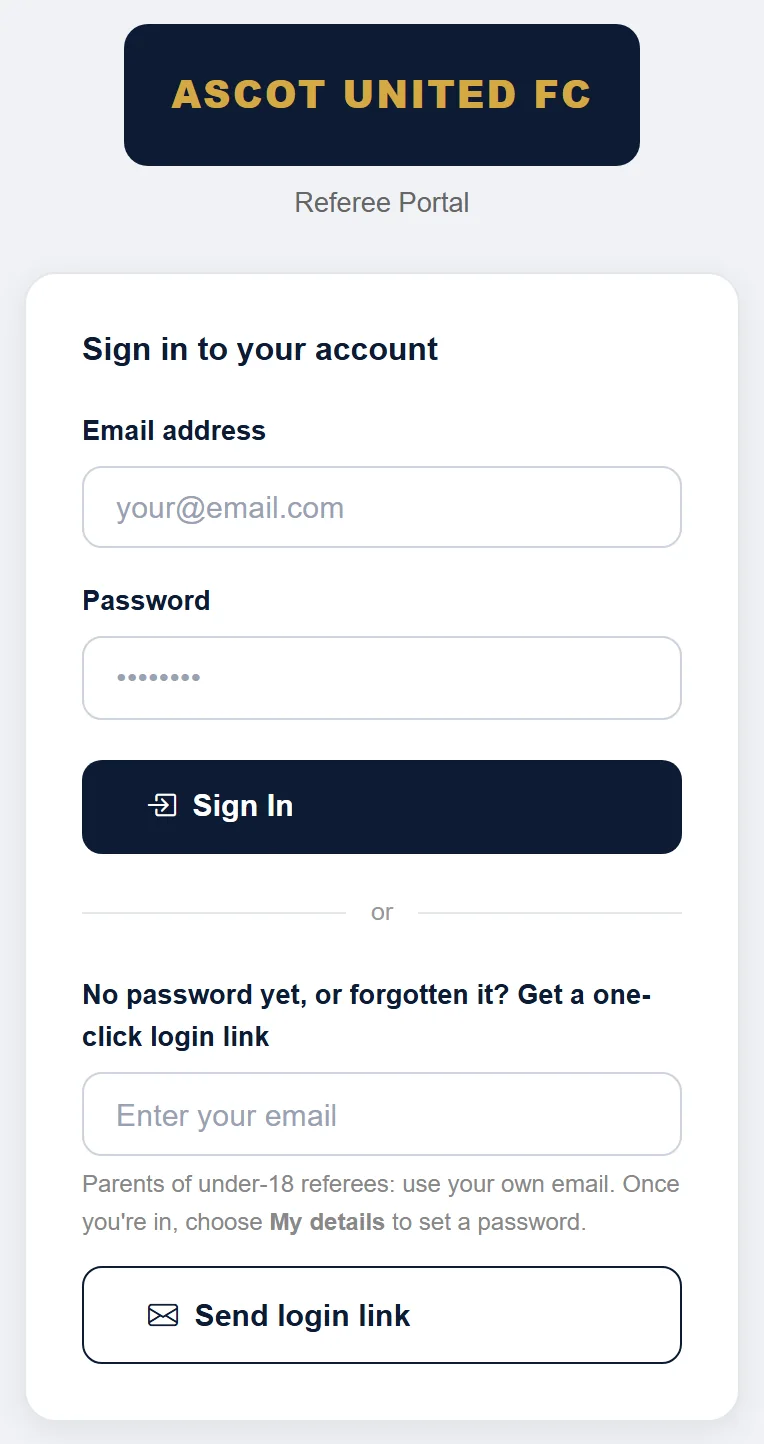
- On the sign-in page, under No password yet, or forgotten it? Get a one-click login link, enter your email address.
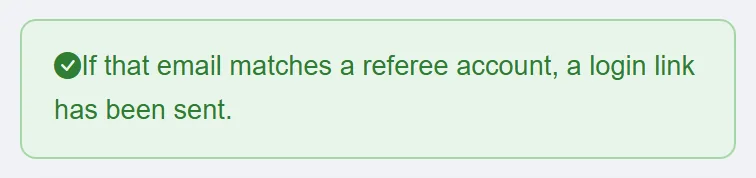
- Tap Send login link. You'll see "If that email matches a referee account, a login link has been sent."
- Open the email Your Ascot United FC Referee Portal login link and tap Log in to Referee Portal.
The link works once and expires after 1 hour. If nothing arrives, check your junk folder and make sure you used the email address the club has for you.
Setting a password
Until you've set a password, your dashboard shows "Set a password to sign in without waiting for a link."
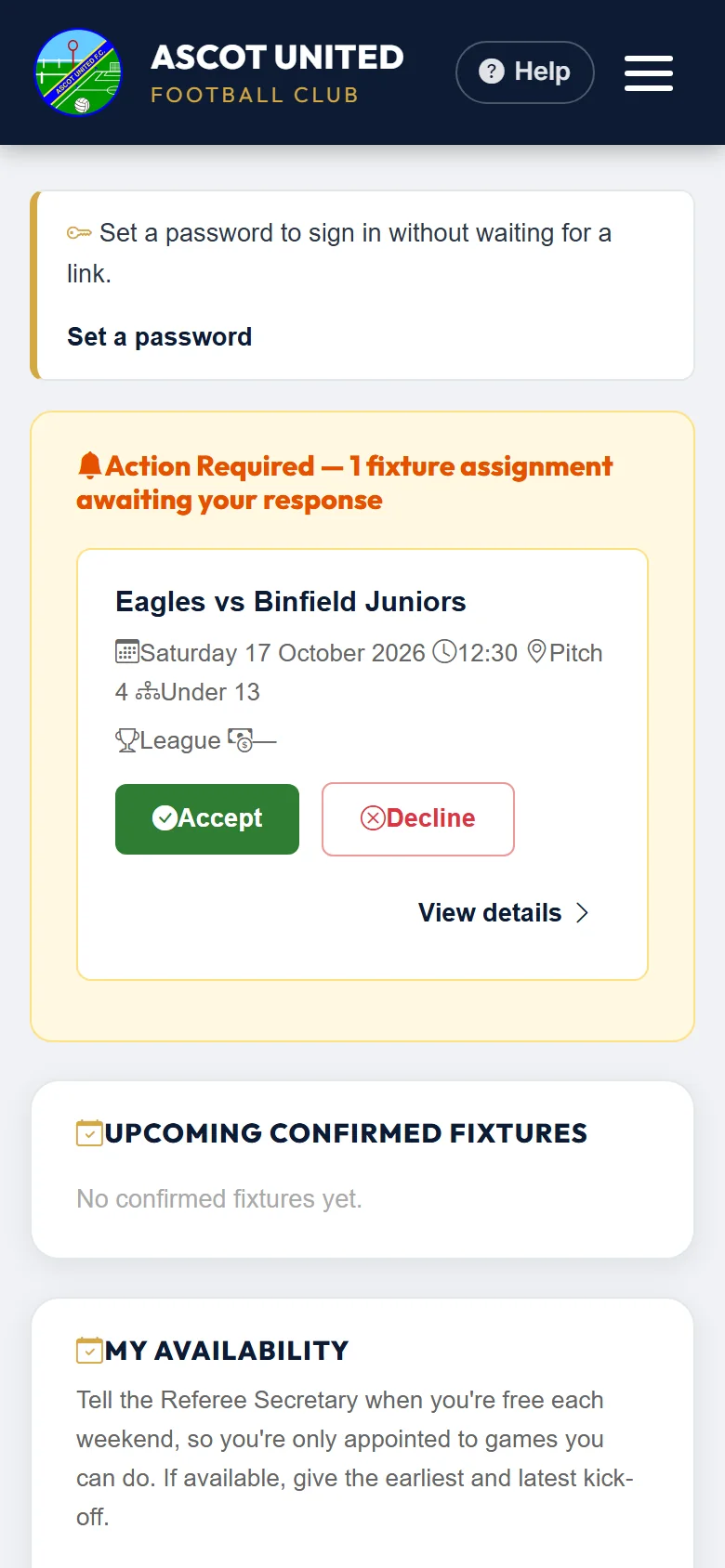
- Tap Set a password (or My details at the top of your dashboard; on a phone, tap ☰ first).
- Type a password of at least 8 characters in New password, and again in Confirm password.
- Tap Set password. You'll see "Your password has been set." followed by the email to sign in with next time.
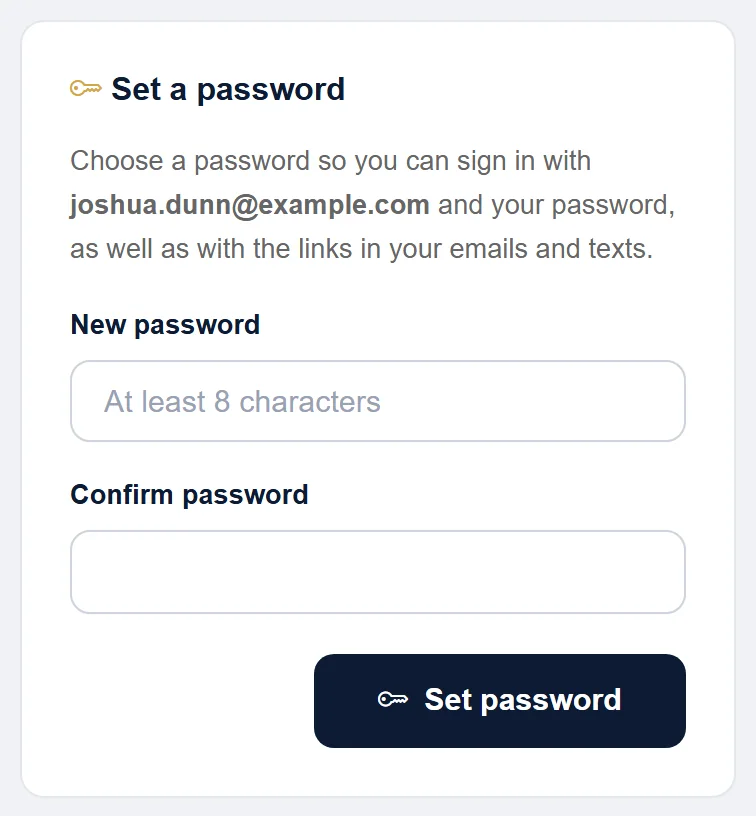
To change it later, go to My details and use Change password in the same way. You aren't asked for your old password, because you're already signed in.
Forgotten your password
Get a login link (above), then choose a new password in My details.
Messages you might see
| Message | What to do |
|---|---|
| Email or password incorrect. | Check for typing mistakes. If you've forgotten your password, get a login link. |
| Too many attempts. Please wait 15 minutes, or use "Send login link" below. | After 5 wrong passwords, wait 15 minutes or get a login link. |
| This link has expired or has already been used. Please log in. | Sign in with your password or a new login link. See Reminders and 72-hour links. |
| Unable to process your login link. Please try again or contact the club. | Open the link again, or get a new login link. |
Staying signed in
After you sign in, the portal remembers you on that phone or computer for 14 days. After that, sign in again. On a shared device, tap Sign out at the top of your dashboard (on a phone, in the ☰ menu) when you've finished.
Your details
Tap My details to update your Email, Mobile number and registration numbers (FA Registration, League Registration, EBFA Registration), then tap Save details. You'll see "Your details have been updated."
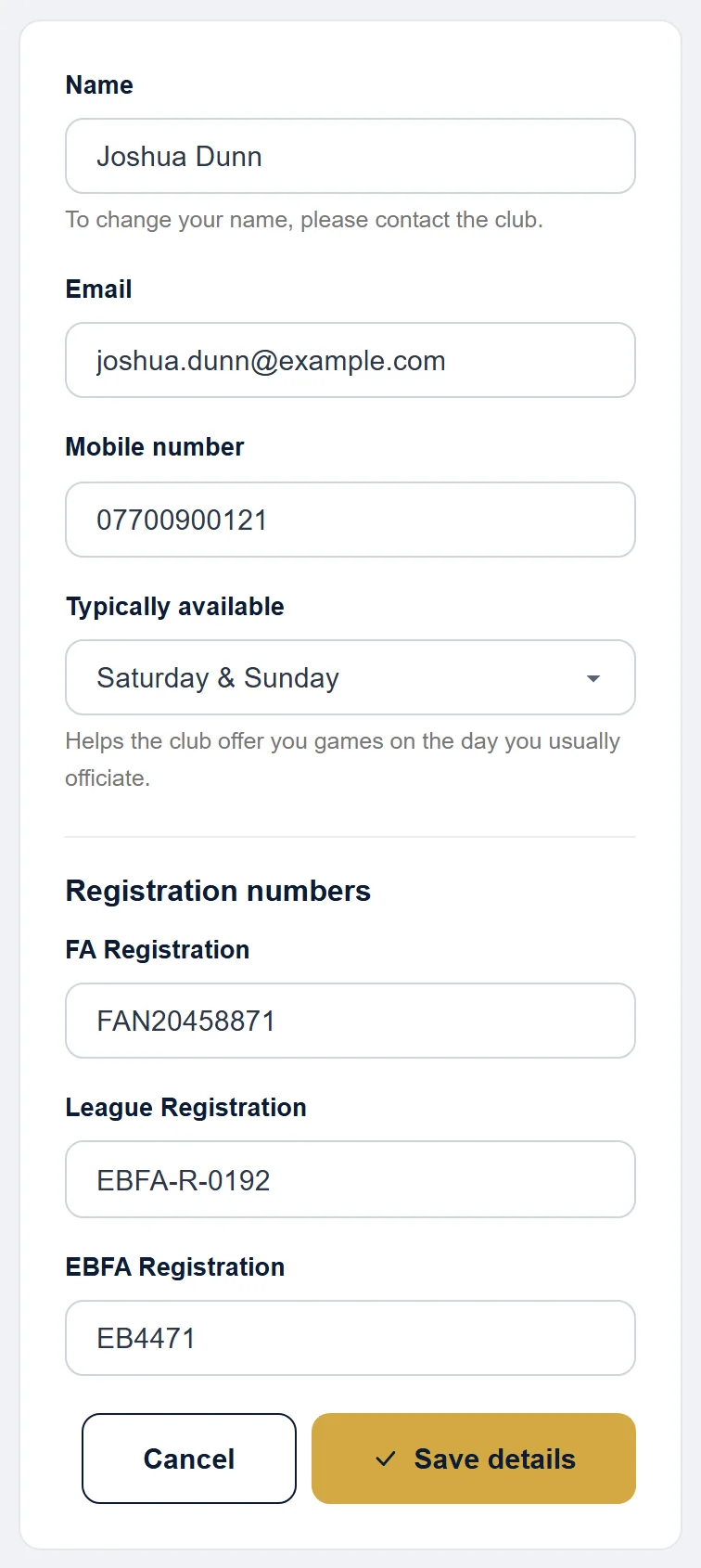
- Your email is how you sign in and get appointments, so you can't leave it blank (unless you're an under-18 referee).
- Team managers get your registration numbers for the match paperwork, so keep them up to date.
- To change your name, contact the club.
For your usual refereeing days, see Availability and holidays.
Still stuck?
Referees and appointments: Jo Gavin