
Match tickets, season tickets, Taster Passes and club event tickets are all scanned on the Scan tab. Each QR code lets one person in, once per match.
Three ways to scan
Phone camera. Tap Enable Camera and point the rear camera at the QR code. You need to tap it each time the page opens. If the camera won't open, a message tells you what to do. Usually it means allowing the camera: tap the padlock (or the ⋮ menu, then Site settings) next to the address bar, set Camera to Allow, reload the page and tap Enable Camera again. Use Chrome on Android or Safari on iPhone.
Bluetooth scanner. If the club has given you a handheld scanner paired to your phone, tick Barcode scanner mode. You'll see Scanner ready — just scan. Then just scan — you don't need to tap anything first. Your phone remembers the setting.
Typing the code. Type the 12 characters printed under the QR code into ENTER TICKET CODE MANUALLY... and tap Check In (or press Enter). Spaces and dashes don't matter.
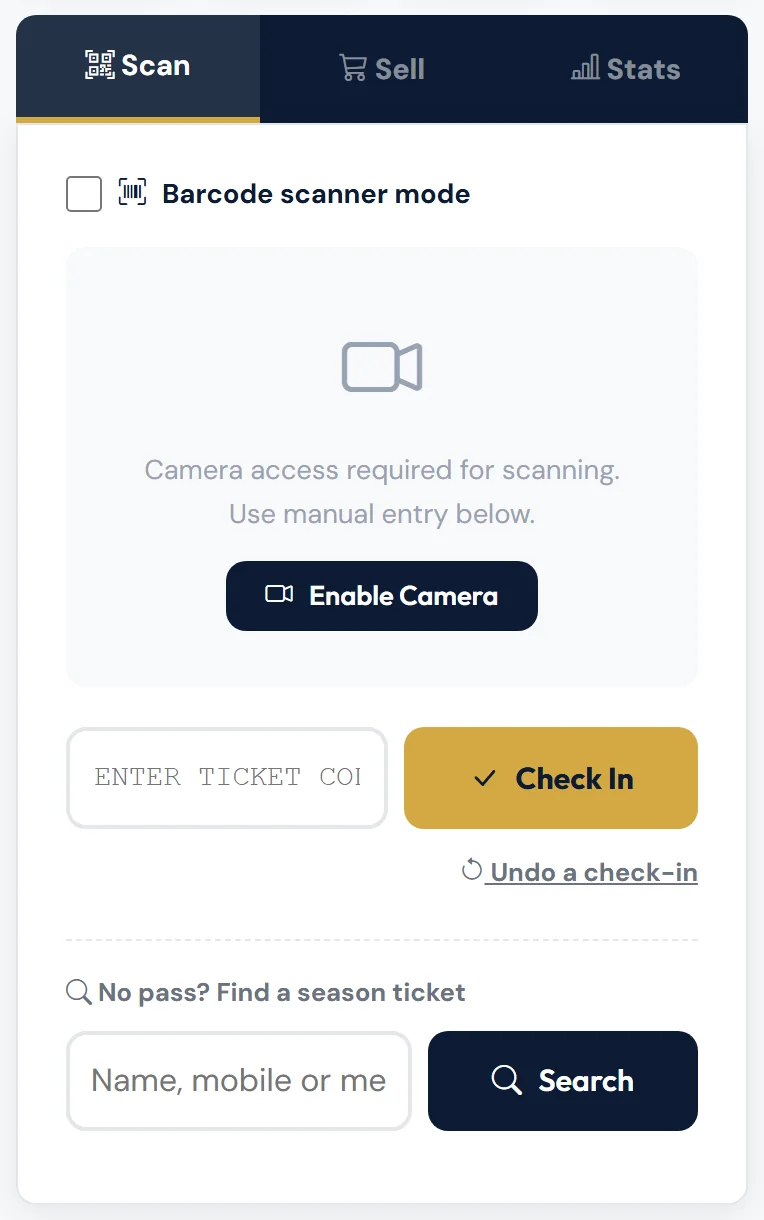
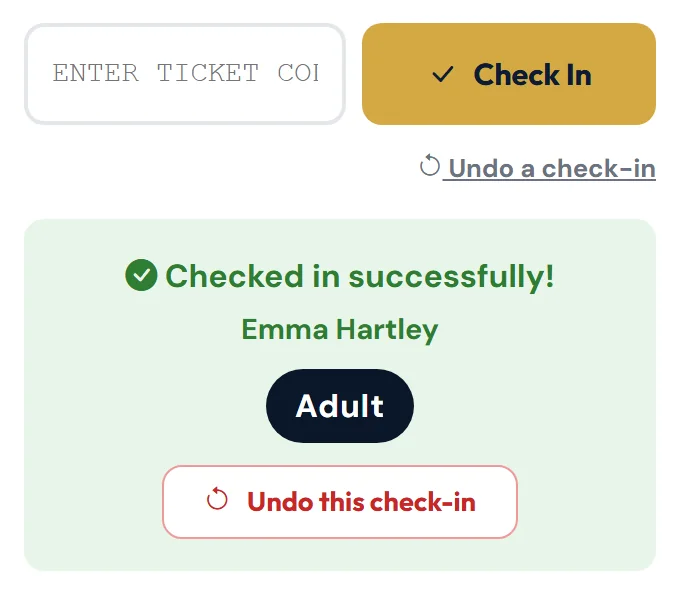
The result appears under the code box — green to let them in, red if not — with the person's name. It stays for 5 seconds, or 12 seconds if it has an Undo button. A good ticket also shows its type, such as Adult, SEASON TICKET, TASTER PASS — FREE or EVENT.
What the messages mean
| Message | What to do |
|---|---|
| Checked in successfully! | Let them in. |
| Season ticket holder checked in! | Let them in. |
| Taster pass (Adult) — checked in (1 of 2 used). | Let them in — it's a free Taster Pass. |
| Checked in to Autumn Quiz Night! | Let them in — it's a club event ticket. |
| Already checked in at 14:52. | That code has already been used. Ask if they've shared a screenshot — each person needs their own code. If the earlier check-in was a mistake, tap Undo that check-in (see below). |
| Season ticket holder already checked in for this fixture. | That season ticket has already been used for this match. |
| Taster pass already used for this game (at 14:50). | That Taster Pass has already been used for this match. |
| This ticket is for a different fixture. | Their ticket is for another match. They can buy a ticket at the gate. |
| Payment not completed for this ticket. | The order was never paid. They can buy a ticket at the gate. |
| This ticket has been cancelled. | Don't admit — send them to the club office. |
| Season ticket is Suspended. (or Cancelled, or Pending) | The pass isn't active. They can buy a ticket, and should contact the club. |
| This season ticket is for 2025/26, which has ended. | It's an old season's pass. They can buy a ticket at the gate. |
| Season tickets aren't valid for this fixture — please buy a ticket at the gate. | This match isn't covered — for example a cup tie. |
| This taster pass isn't valid for this game. | They didn't choose this match when they booked. They can buy a ticket. |
| Taster passes aren't accepted for this game — please buy a ticket at the gate. | This match isn't a taster game. |
| Taster pass is Cancelled. | The pass isn't active. They can buy a ticket. |
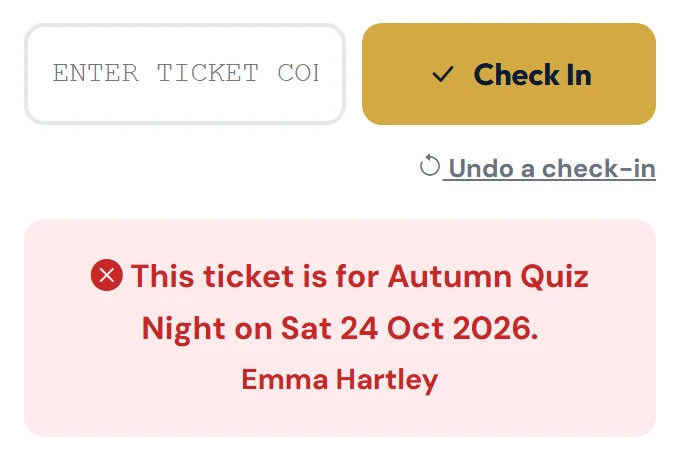
| This ticket is for Autumn Quiz Night on Sat 24 Oct 2026. | It's a club event ticket for another day — see below. |
| Ticket not found. Check the code and try again. | Check the code, or ask them to open the right ticket. |
| You have been signed out. Please reload the page and sign in again. | Reload the page and sign in, then scan again. |
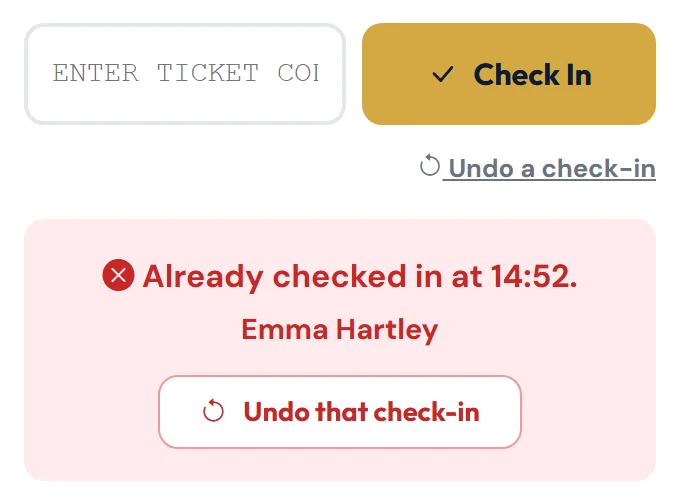
There's no pass-out — once a code has been used for this match, it won't work again. If you check someone in by mistake, you can undo it.
Undoing a check-in
If you check someone in by mistake — for example you scanned the wrong ticket, or tapped the wrong season ticket holder — you can undo it. The code can then be scanned again, and one comes off the attendance count.
- Tap Undo this check-in in the result box. If the result has gone, tap Undo a check-in under the code box. If you've just checked someone in, their code is filled in for you. Otherwise scan or type the code and tap Find.
- Check the details: the name, the ticket type, the match or event, and when (and by whom) they were checked in.
- Add a Reason (optional) if you like, and tap Undo check-in. You'll see "Check-in undone for …" with their name. Tap Keep check-in if you change your mind.
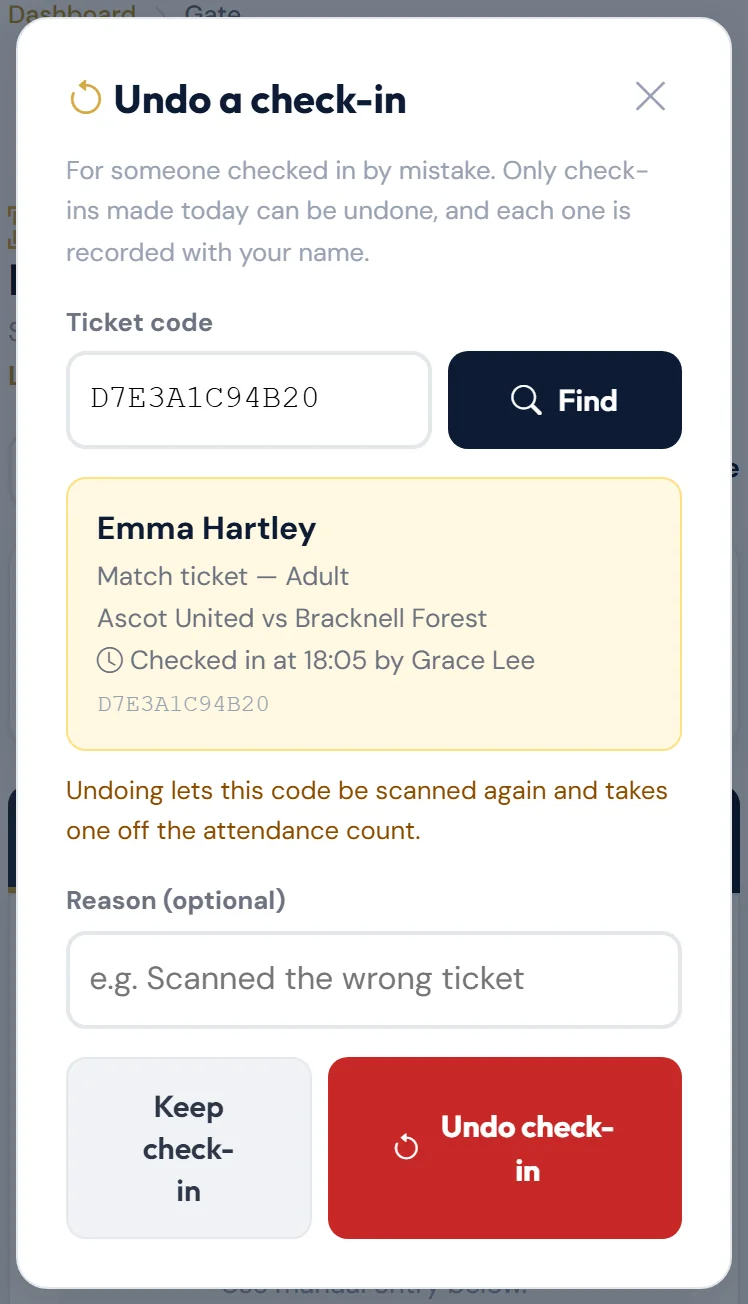
While the undo box is open, a scan with the camera or a Bluetooth scanner fills in its code box. It doesn't check anyone in.
On the match gate, you can also undo from the lists behind the Checked In, Sold and Season counters at the top of the screen. Tap Undo on the right row.
Only check-ins made today, at the match or event that's open on the gate, can be undone. Every undo is recorded with your name and the reason.
| Message | What to do |
|---|---|
| Only check-ins made today, at today's match, can be undone. | It can't be undone — it wasn't made today, or the gate isn't open for today's match. |
| Only check-ins made today, on the day of the event, can be undone. | The same, for a club event ticket. |
| Tickets sold at the gate are checked in as they're sold, so there's no check-in to undo. … | If the sale itself was a mistake, tell the office. |
| This is a free ticket issued at the gate — … If it was issued by mistake, cancel it under Stats → Free tickets. | Cancel it there. See Selling at the gate. |
| This ticket hasn't been checked in, so there's nothing to undo. | Nothing to do. |
| This ticket is for a different fixture, so its check-in can't be undone here. | It was checked in at another match. If that match is also today, switch to it with the buttons near the top and try again. |
| That's a match-day code, not a ticket for this event. Open the match gate to undo it. | If there's a match today, tap its Match: … button near the top and try again. |
| This page has expired. Please reload it and try again. | Reload the page, then try again. |
| Couldn't undo the check-in — please try again. If it keeps happening, tell the office. | Try again. If it keeps happening, tell the office. |
Club event tickets
Tickets for club events (quiz nights, awards evenings) only let people in on the day of the event. A good ticket shows "Checked in to …!" with the event's name.
On any other day, the gate says which event and date the ticket is for, and doesn't let it in.
The event gate
On the day of a club event, the gate can open for the event itself — the event gate:
- Event but no match today — tap Open the Gate as usual. The event gate opens straight away.
- Match and event on the same day — the gate opens the match first. Tap the event's button near the top, such as Event: Autumn Quiz Night, to switch. To go back, tap Match: ….
If there's more than one event today, use the same buttons to switch between them.
The event gate shows the event's name, a purple Club event label and just the Scan part — there's no Sell or Stats. Scan with the camera, a Bluetooth scanner or by typing the code, as for a match. Undo a check-in works here too.
A counter shows how many are in so far, for example 12 of 40 tickets checked in and 28 still to arrive. It updates itself every 15 seconds.
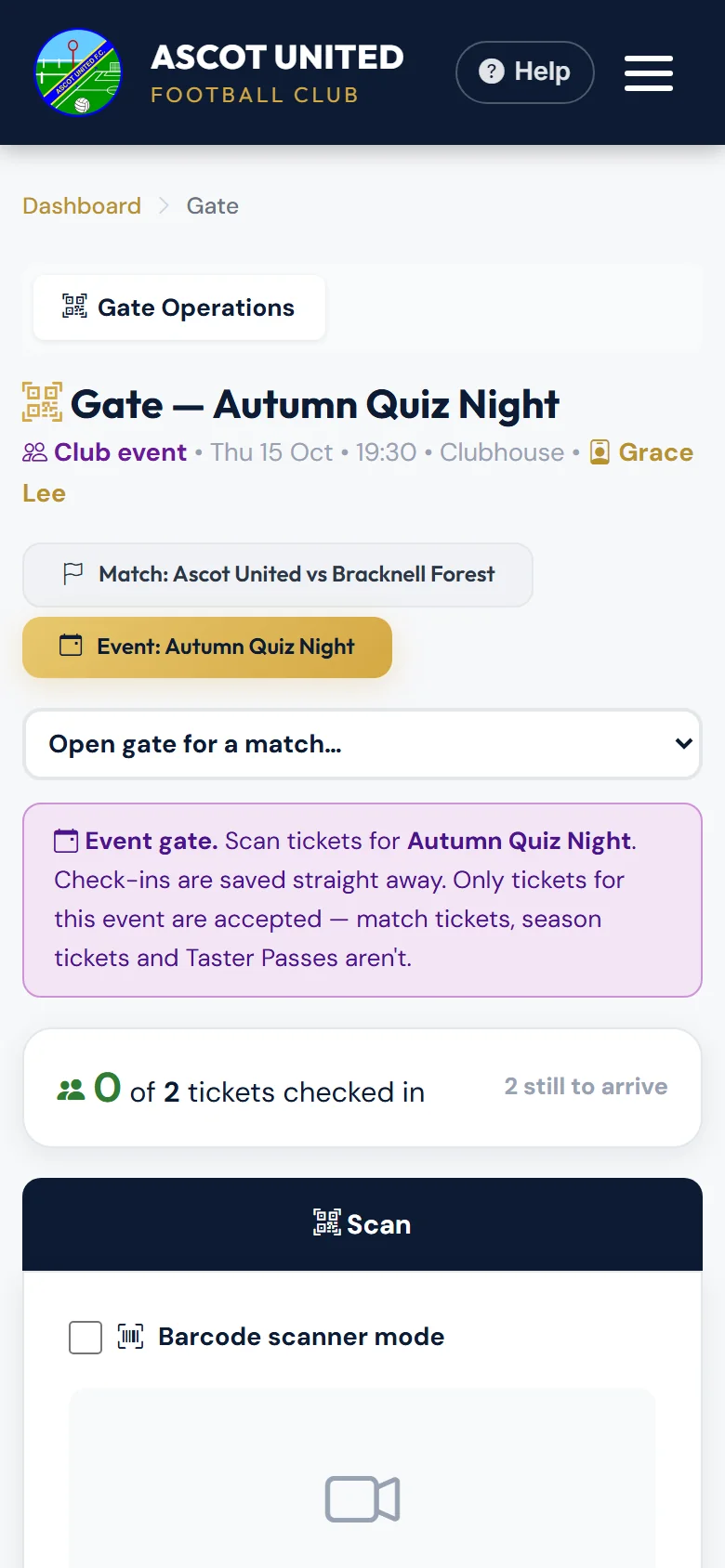
Check-ins are saved straight away. There's no Test mode on the event gate.
It only lets in tickets for this event:
| Message | What to do |
|---|---|
| Checked in to Autumn Quiz Night! | Let them in. |
| That's a match ticket, not a ticket for Autumn Quiz Night. (or a season ticket, or a Taster Pass) | It isn't a ticket for this event. Ask them to open the right ticket. |
| This ticket is for Summer Social on Sat 13 Jun 2026, not Autumn Quiz Night. | It's a ticket for a different event. |
| Already checked in at 19:32. | That ticket has already been used. If the earlier check-in was a mistake, tap Undo that check-in. |
The other messages — for example "Payment not completed for this ticket." — mean the same as on the match gate.
You can also check in an event ticket from its own page:
- Scan the ticket's QR code with your phone's own camera app. It opens the ticket's page, showing Valid Event Ticket.
- If you're signed in to your gate login in that browser, tap Check in. You'll see "Checked in to …" with the event's name.
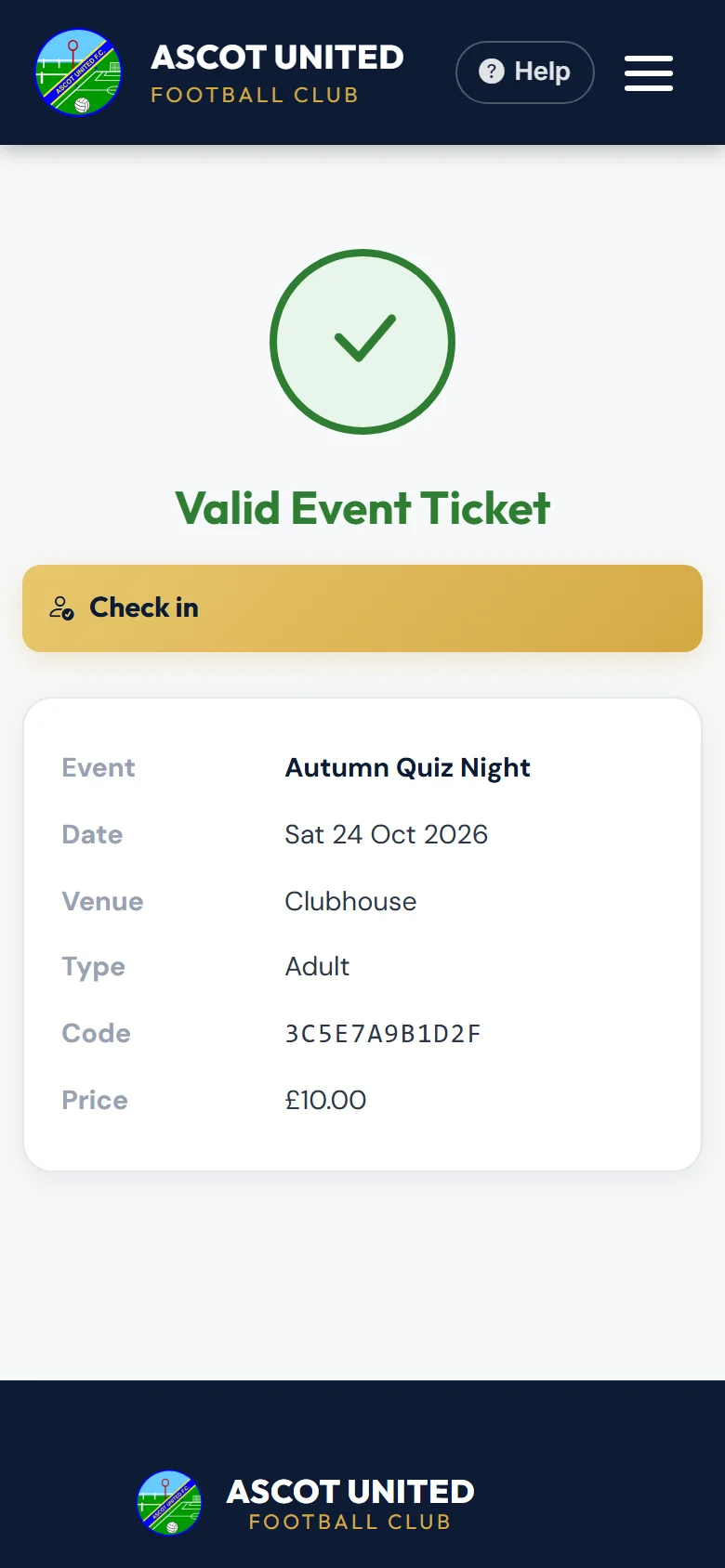
This only works on the day of the event. Checking in from the ticket's page is always real, even in Test mode.
Scanning with your phone's own camera
For match tickets, season tickets and Taster Passes, your phone's camera app only shows the ticket's details — Valid Ticket, Already Used, Cancelled, Not paid or Invalid. It doesn't check the person in. Always use the gate screen for these.
Still stuck?
Tickets, season tickets and match day: Dan Birchmore