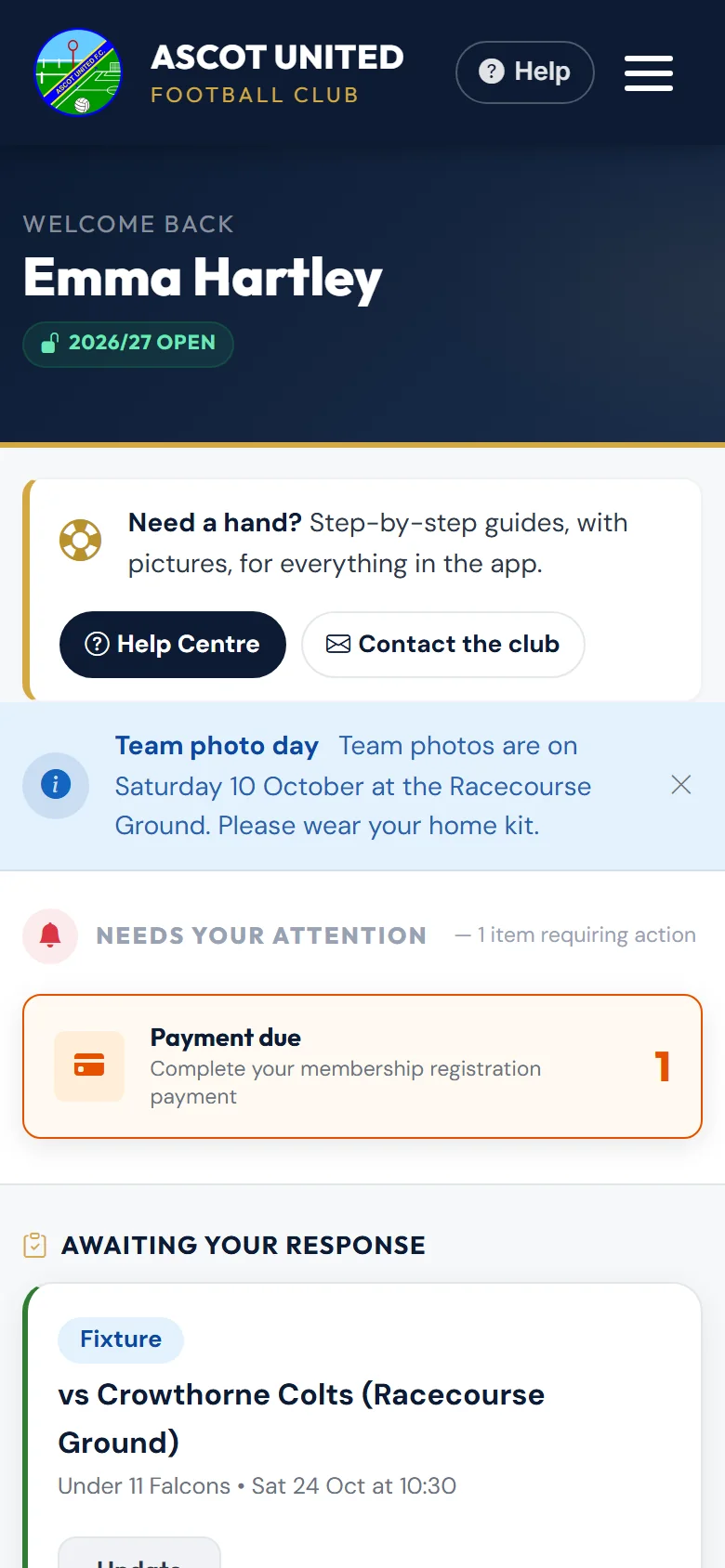
Your dashboard is the page you land on after signing in. It shows every child registered on your account and anything you need to do.
Getting to your dashboard
- Go to app.ascotunitedfc.co.uk and sign in with your email and password.
- You'll land on your dashboard straight away.
- To come back to it from anywhere in the app, choose Dashboard in the menu. On a phone, tap the ☰ button at the top right first.
Needs your attention
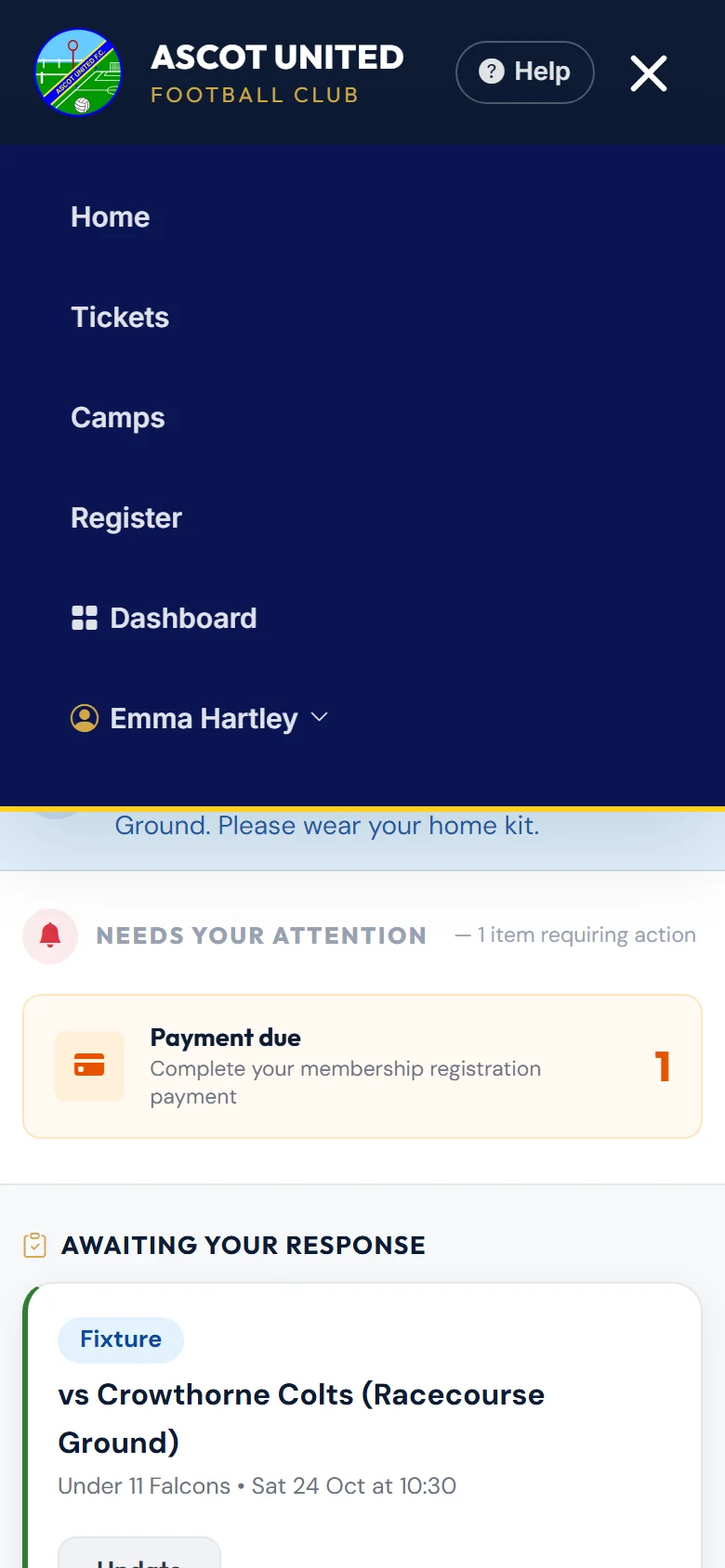
If something needs doing, a Needs your attention box appears at the top of the page. For parents it shows Payment due when a registration hasn't been paid for yet. The number shows how many are waiting.
My Players
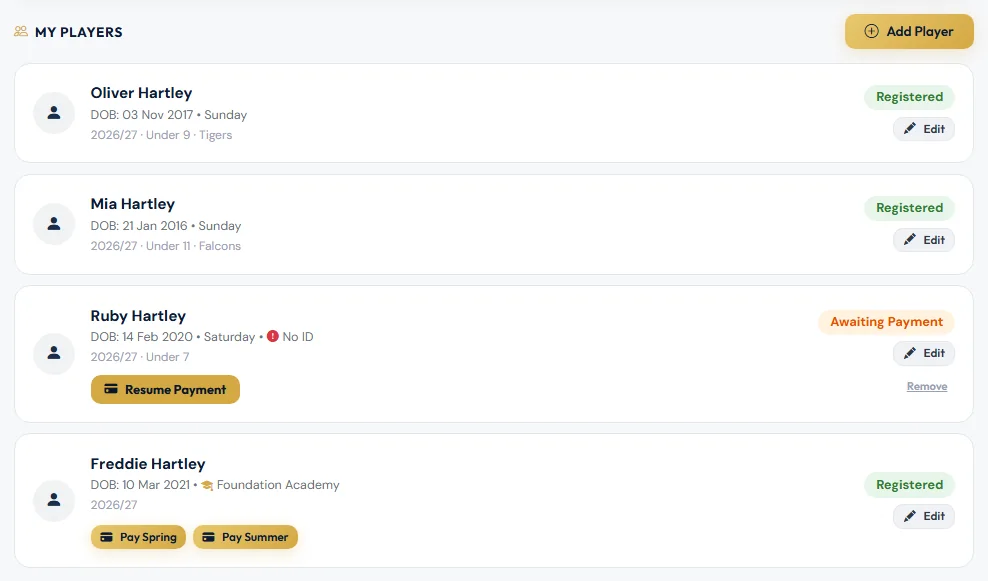
Each child on your account has a card showing their name, date of birth and playing day, and the season, age group and team they're registered for. Their registration status is on the right.
What each status means:
| Status | What it means | What you need to do |
|---|---|---|
| Awaiting Payment | The form is complete but hasn't been paid for. | Tap Resume Payment on the card to finish paying. |
| Pending | Payment is done. The club is choosing the right team. | Nothing — the club will place your child in a team. |
| Allocated | Your child has been placed in a team. | Nothing — the club is finishing the registration. |
| Registered | Registration is complete. | Nothing. |
| Rejected | The club couldn't accept the registration yet. The reason is shown on the card. | Fix what's needed with Edit, then tap Resubmit for review. |
Other things you might see on a card:
- No ID in red means we haven't got proof of your child's age yet (for example a birth certificate or passport). Tap Edit to upload it.
- Resume Payment appears when a registration hasn't been paid for. It takes you back to the payment page.
- Pay followed by a term name (for example Pay Spring Term) appears for Foundation Academy and Girls Development Academy players when the next term is due.
- Edit opens your child's details. You can update their playing day, medical needs, allergies, photo consent, headshot photo and proof-of-age document, and add their FA Number.
- Resubmit for review appears when a registration has been rejected. Use it after you've made the changes the club asked for.
- Remove appears for a child who has nothing paid on the account. Children who have paid, or have a camp place booked, can only be removed by the club.
- Camp only means the child is on your account for holiday camps, not registered with a team.
To register another child, tap Add Player at the top of the list.
Staff who are also parents see this list headed My Family instead of My Players. It works the same way.
Add your FA details
If we don't have your FA Number (FAN) and date of birth, a yellow box asks you to add them. The club uses them to link you to your child on the FA's Whole Game System.
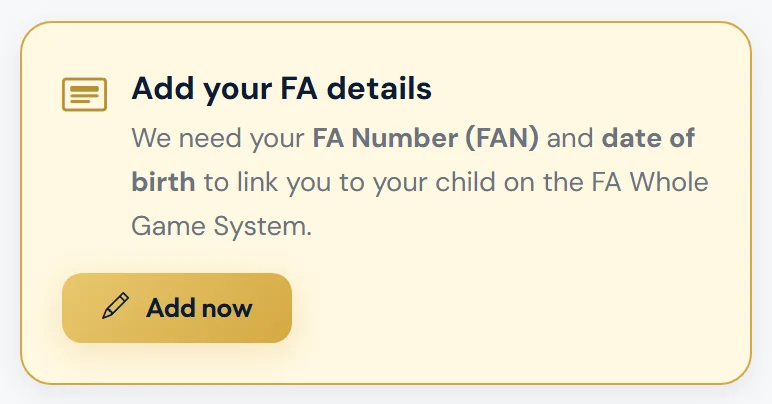
Tap Add now, fill in your FAN and date of birth, and save. If you don't have a FAN yet, you can get one free from the FA website.
Your Details
This card shows the email, phone number, address, FA Number and date of birth we hold for you. If you've added a second parent or guardian, they're listed here too.
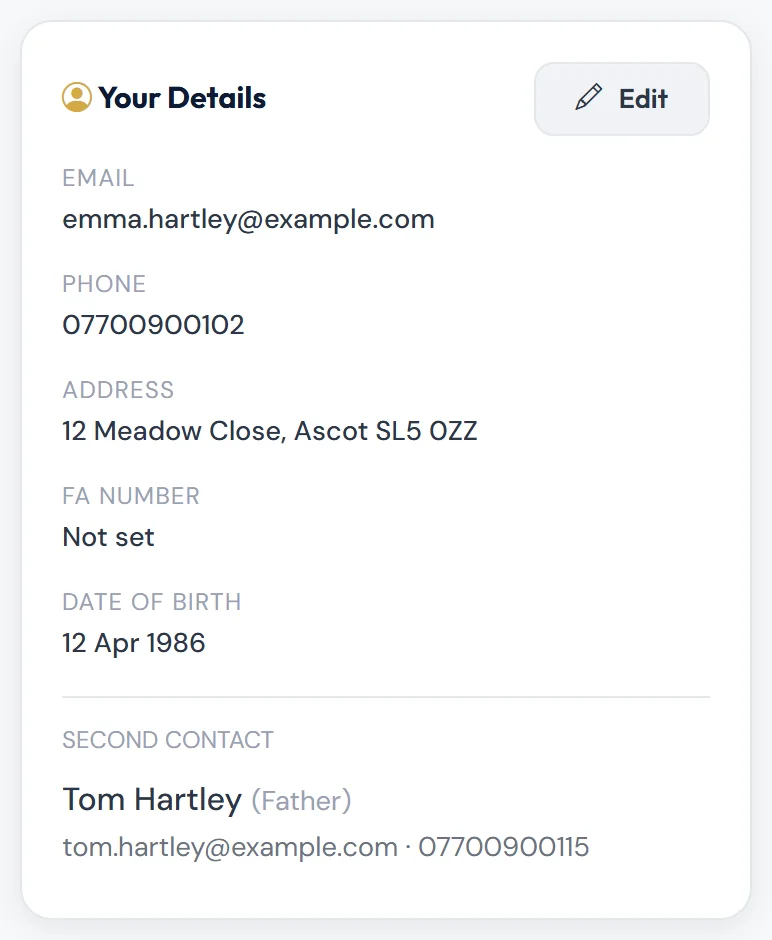
Keep your email and mobile number up to date. That's where the club sends payment links, availability requests and match-day messages.
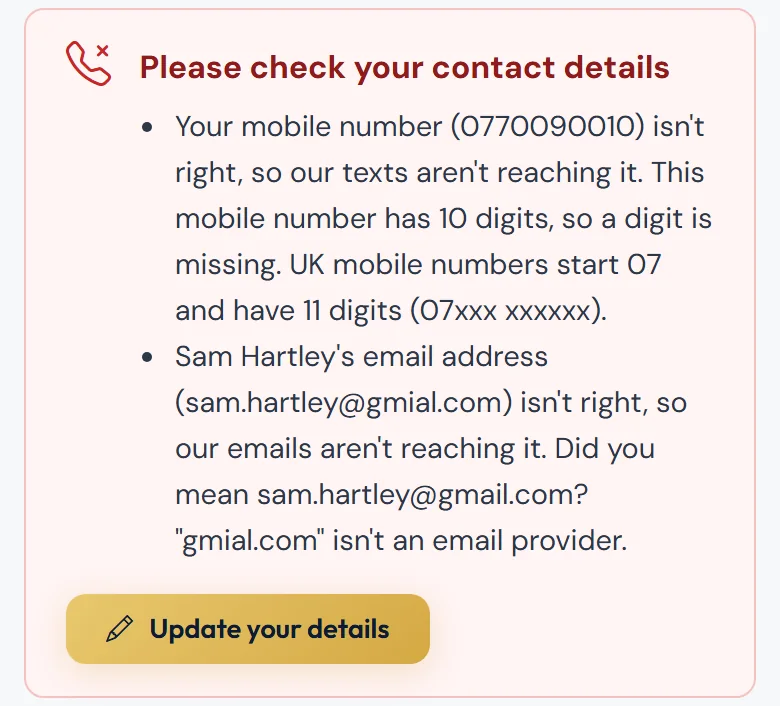
Please check your contact details
If a mobile number or email address on your account can't be reached (for example a digit is missing, or there's a typing slip in the email), a Please check your contact details box appears near the top of your dashboard. It says what's wrong. Choose Update your details, correct it and save, and the box goes.
Quick links
At the bottom of the page are shortcuts to the things parents use most:

- Buy Match Tickets — tickets for Ascot United's senior home matches.
- Register a Player — start a registration for another child.
- Edit My Details — change your contact details, address and FA details.
- My Payments — everything you've paid, refunds, and anything still to pay. See Your payments page.
- Family Season Passes — appears if your registration came with season passes.
- Club Documents — the club's policies, forms and codes of conduct.
- Availability Block-outs — tell your child's coach about holidays or injuries in advance, so they're marked unavailable automatically.
Club Documents
The Club Documents link near the top opens the club's policies, forms and codes of conduct.
Common problems
I can't see one of my children. Check you're signed in with the same email you used to register them. If you're also a coach or volunteer and signed in to a staff account, sign out and back in: the account updates itself to show your family.
The Resume Payment button isn't there. It only shows while a registration is unpaid. If you've just paid, refresh the page. The status should now say Pending, or Registered for Academy players. Your payment will also be listed on My Payments.
My child has been Pending for a while. The club places children in teams in batches, especially at the start of the season. If you're not sure what's happening, get in touch.
Still stuck?
Registrations and membership: Registrations